# Cybersecurity Home Lab

### Lab Introduction

Building a home cyber lab is important because it provides a practical environment for developing cybersecurity skills, experimenting with tools and techniques safely, and enhancing education and training.

This lab is inspired by Day of Cyberwox Acadamy.

{% embed url="<https://cyberwoxacademy.com/building-a-cybersecurity-homelab-for-detection-monitoring/>" %}

The purpose of this project is to setup the cyber home lab. Additional projects using the lab will come later.

#### Technologies Used

* VMware Workstation
* pfSense Firewall
* Security Onion
* Splunk
* Ubuntu Desktop and Server
* Windows Server 2019 (Active Directory)
* Windows 10
* Kali Linux

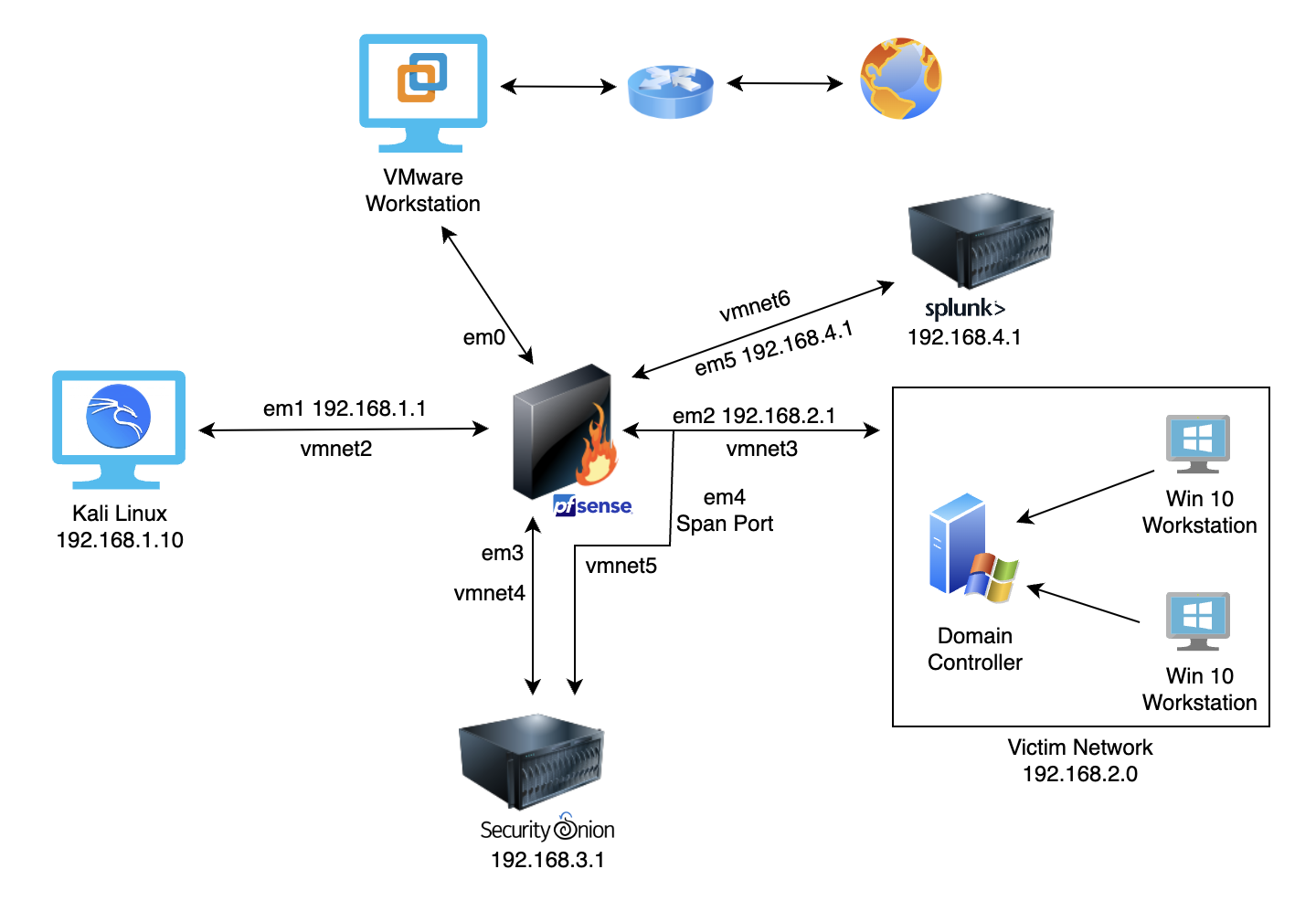
#### Network Diagram

<figure><img src="https://450836410-files.gitbook.io/~/files/v0/b/gitbook-x-prod.appspot.com/o/spaces%2Fgns9cN7UvH1POIBCfrRn%2Fuploads%2FwDuL3PLnOJz5CJBxKcFQ%2Fimage.png?alt=media&#x26;token=1ac34df2-5460-4757-a3ac-828c3b9ac4e2" alt=""><figcaption></figcaption></figure>

### Part 1 - pfSense

You are welcome to use any hypervisor for this lab. I am personally using VMware Workstation.&#x20;

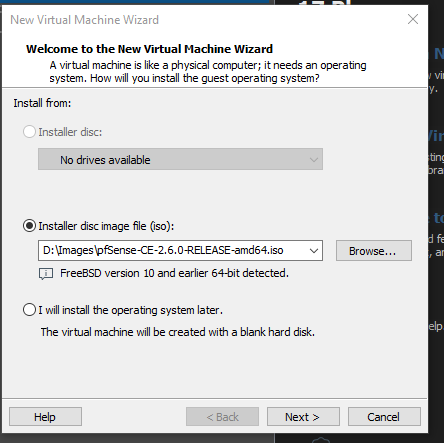
For Part 1 of the lab, pfSense will be configured as the firewall and used to segment the network. Below is a link to download the pfSense iso file.

{% embed url="<https://www.pfsense.org/download/>" %}
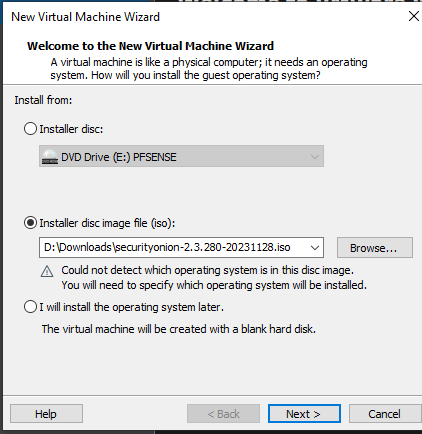
Once the download finishes, navigate to the hypervisor application and create a new machine.

<figure><img src="https://450836410-files.gitbook.io/~/files/v0/b/gitbook-x-prod.appspot.com/o/spaces%2Fgns9cN7UvH1POIBCfrRn%2Fuploads%2FlblSewx5auknh2tjmLOL%2Fimage.png?alt=media&#x26;token=f4d912e8-45e9-4a28-b32d-8f01ef3b1ee4" alt=""><figcaption></figcaption></figure>

<figure><img src="https://450836410-files.gitbook.io/~/files/v0/b/gitbook-x-prod.appspot.com/o/spaces%2Fgns9cN7UvH1POIBCfrRn%2Fuploads%2FCMlezbNI271NpElw4qhX%2Fimage.png?alt=media&#x26;token=c5d74522-fa1a-4e8b-b6a4-e75d245661d1" alt=""><figcaption></figcaption></figure>

<figure><img src="https://450836410-files.gitbook.io/~/files/v0/b/gitbook-x-prod.appspot.com/o/spaces%2Fgns9cN7UvH1POIBCfrRn%2Fuploads%2FpIze73WvG0JSPmJrVran%2Fimage.png?alt=media&#x26;token=13a88d9f-85b7-49f3-894f-90b2933a5e67" alt=""><figcaption></figcaption></figure>

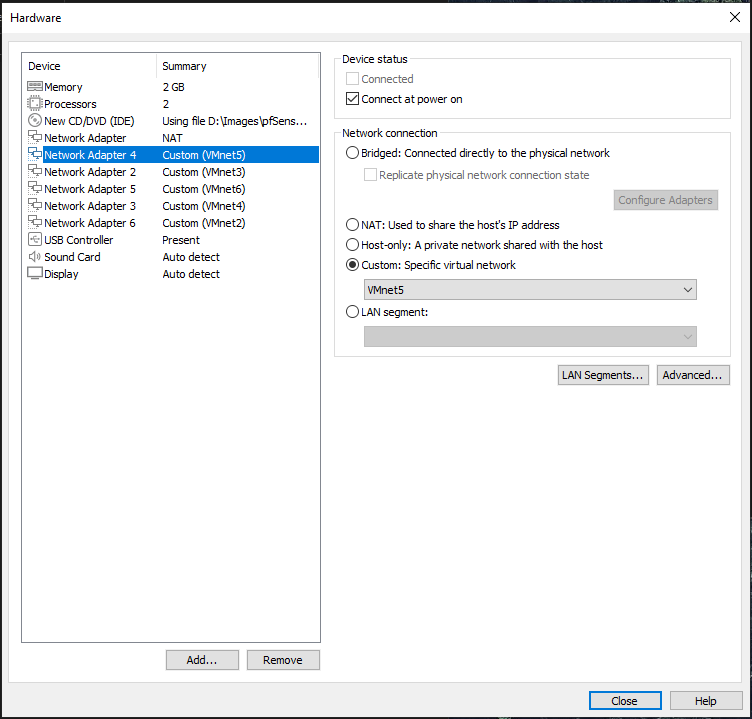
Navigate to Customize Hardware

<figure><img src="https://450836410-files.gitbook.io/~/files/v0/b/gitbook-x-prod.appspot.com/o/spaces%2Fgns9cN7UvH1POIBCfrRn%2Fuploads%2Fa8RJuHfQIzKKZYBjFQ46%2Fimage.png?alt=media&#x26;token=48a79047-b8eb-43ee-bf21-6e7ba0b6bd89" alt=""><figcaption></figcaption></figure>

Add 5 additional network adapters. These will be used for network segmentation.

<figure><img src="https://450836410-files.gitbook.io/~/files/v0/b/gitbook-x-prod.appspot.com/o/spaces%2Fgns9cN7UvH1POIBCfrRn%2Fuploads%2FpwHJJ3gzYYRDcsv8ujRG%2Fimage.png?alt=media&#x26;token=a4516e76-439c-413e-bf82-c2fb998ffcbe" alt=""><figcaption></figcaption></figure>

The table below provides a summary of each interface.

<figure><img src="https://450836410-files.gitbook.io/~/files/v0/b/gitbook-x-prod.appspot.com/o/spaces%2Fgns9cN7UvH1POIBCfrRn%2Fuploads%2F1in9GAscxTij8TT21kpA%2Fimage.png?alt=media&#x26;token=2f510f08-73d4-4b4d-96e0-c6cbc53faaa2" alt=""><figcaption></figcaption></figure>

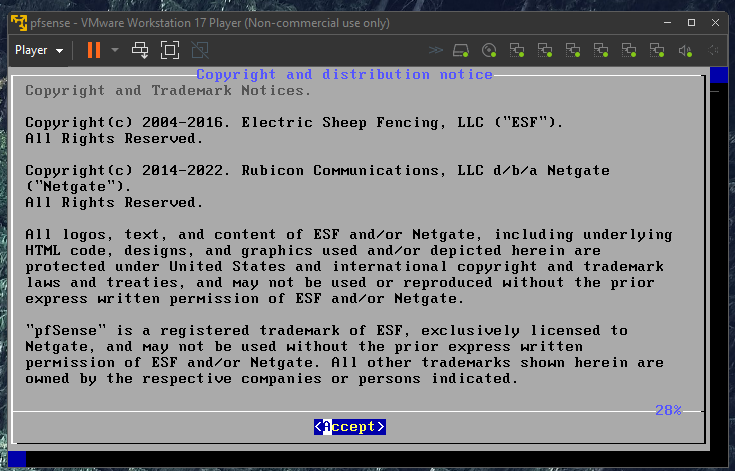
Power on the pfSense machine and accept the defaults.

<figure><img src="https://450836410-files.gitbook.io/~/files/v0/b/gitbook-x-prod.appspot.com/o/spaces%2Fgns9cN7UvH1POIBCfrRn%2Fuploads%2FMz3vLwudrbTBgH2NTBzO%2Fimage.png?alt=media&#x26;token=a1354612-8bf3-45f9-b15d-aaee749fa449" alt=""><figcaption></figcaption></figure>

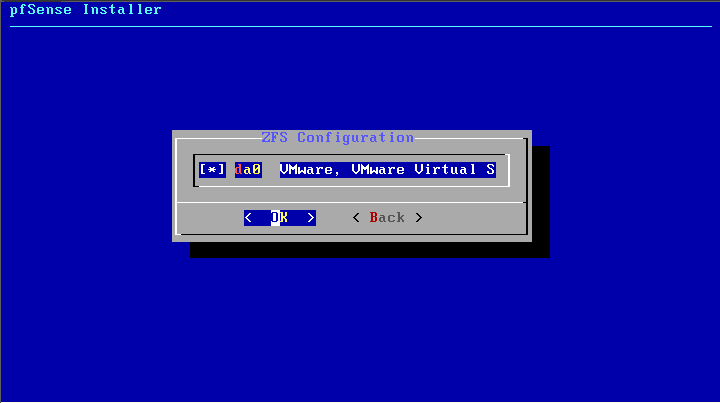
<figure><img src="https://450836410-files.gitbook.io/~/files/v0/b/gitbook-x-prod.appspot.com/o/spaces%2Fgns9cN7UvH1POIBCfrRn%2Fuploads%2FFPCG3l2PWkqma6bDVSWC%2Fimage.png?alt=media&#x26;token=8f1f88e0-eb2c-4b04-8193-7e720414491b" alt=""><figcaption></figcaption></figure>

After the machine completes the installation, the pfSense interface will appear.

<figure><img src="https://450836410-files.gitbook.io/~/files/v0/b/gitbook-x-prod.appspot.com/o/spaces%2Fgns9cN7UvH1POIBCfrRn%2Fuploads%2FXeJ6JrzcUeTWGuynRLkk%2Fimage.png?alt=media&#x26;token=6a426c48-08ee-43b1-bf79-d03ae61f74df" alt=""><figcaption></figcaption></figure>

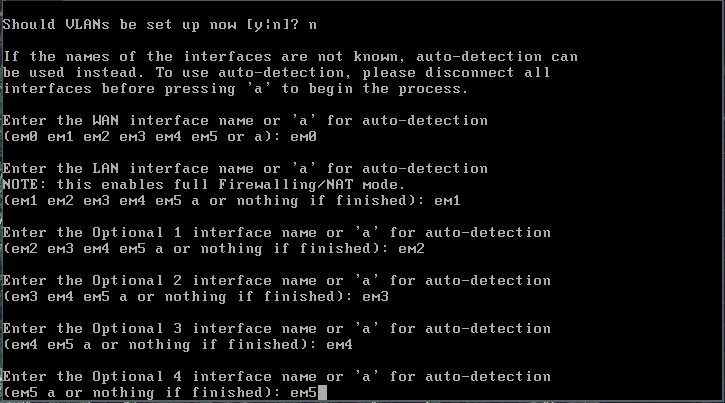
Enter option 1 and configure the interfaces.

*Should VLANs be set up now \[y:n]? n*

*Enter em0 em1 em2 em3 em4 em5*

<figure><img src="https://450836410-files.gitbook.io/~/files/v0/b/gitbook-x-prod.appspot.com/o/spaces%2Fgns9cN7UvH1POIBCfrRn%2Fuploads%2FecWZvhFM9gPho08AllKV%2Fimage.png?alt=media&#x26;token=ed5235d1-7504-4dea-a8fe-ff56df87b30e" alt=""><figcaption></figcaption></figure>

After responding to the prompts for each interface, pfSense will provide a list of assigned interfaces.

<figure><img src="https://450836410-files.gitbook.io/~/files/v0/b/gitbook-x-prod.appspot.com/o/spaces%2Fgns9cN7UvH1POIBCfrRn%2Fuploads%2F1GOt8Ab149h9T81IXPFq%2Fimage.png?alt=media&#x26;token=a69775f8-3c2e-4025-a917-2dfcc6dccf3f" alt=""><figcaption></figcaption></figure>

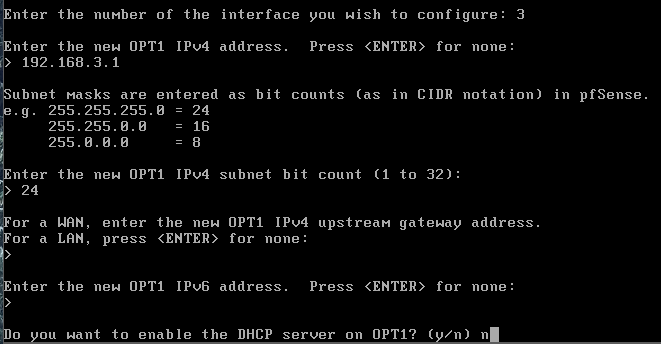
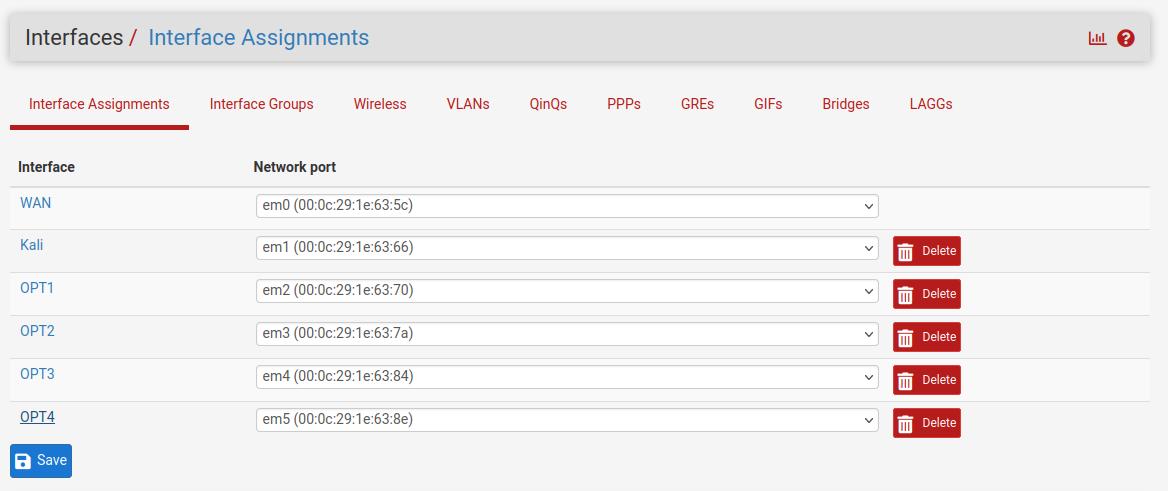
Next, configure the interface IP addresses. At the home menu, enter option 2. The interfaces will be configured based on the list below:

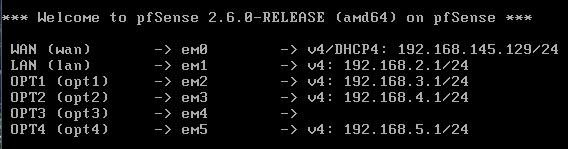
* LAN (em1) - 192.168.2.1
* OPT1 (em2) - 192.168.3.1
* OPT2 (em3) - 192.168.4.1
* OPT3 (em4) - blank
* OPT4 (em5) - 192.168.5.1

The LAN will be used to access the web interface for pfSense.&#x20;

<figure><img src="https://450836410-files.gitbook.io/~/files/v0/b/gitbook-x-prod.appspot.com/o/spaces%2Fgns9cN7UvH1POIBCfrRn%2Fuploads%2F76oMpvfs9Rk5cpmcMXnY%2Fimage.png?alt=media&#x26;token=efc7dbe8-ab16-405e-9684-9266f0141d91" alt=""><figcaption></figcaption></figure>

OPT1 configuration

<figure><img src="https://450836410-files.gitbook.io/~/files/v0/b/gitbook-x-prod.appspot.com/o/spaces%2Fgns9cN7UvH1POIBCfrRn%2Fuploads%2FUyCninr8DfPFJGEHNrNb%2Fimage.png?alt=media&#x26;token=7f2b0054-6c82-4515-b4e5-1901c8abcdde" alt=""><figcaption></figcaption></figure>

OPT2 configuration

<figure><img src="https://450836410-files.gitbook.io/~/files/v0/b/gitbook-x-prod.appspot.com/o/spaces%2Fgns9cN7UvH1POIBCfrRn%2Fuploads%2FQPJAJW9rYFcwsJKYmEGO%2Fimage.png?alt=media&#x26;token=8045d8e1-5b33-4891-8676-da31bc39c696" alt=""><figcaption></figcaption></figure>

\*Note: OPT3 will not be assigned an IP address since it will have a span port for Security Onion.

OPT4 configuration

<figure><img src="https://450836410-files.gitbook.io/~/files/v0/b/gitbook-x-prod.appspot.com/o/spaces%2Fgns9cN7UvH1POIBCfrRn%2Fuploads%2FnPB2K3IAGMuE2diN6Yis%2Fimage.png?alt=media&#x26;token=125f2aaf-b098-41d7-84d5-9908647a06a5" alt=""><figcaption></figcaption></figure>

After configuring the interfaces, ensure the table is correct.

<figure><img src="https://450836410-files.gitbook.io/~/files/v0/b/gitbook-x-prod.appspot.com/o/spaces%2Fgns9cN7UvH1POIBCfrRn%2Fuploads%2FDnXopMW5gOgOchgc3G6c%2Fimage.png?alt=media&#x26;token=259834c4-c8ad-4516-87fb-51fe9cb4b23b" alt=""><figcaption></figcaption></figure>

#### pfSense Web Interface

Now that the pfSense firewall is configured, log in to the web interface.&#x20;

Download Kali Linux

{% embed url="<https://www.kali.org/get-kali/#kali-virtual-machines>" %}
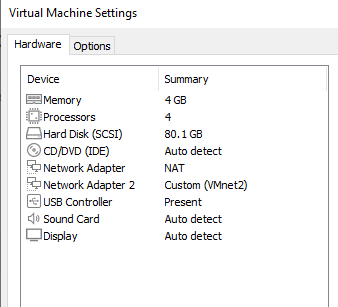
Create the VM and add a network adapter to the machine. Connect the adapter to VMnet2.

<figure><img src="https://450836410-files.gitbook.io/~/files/v0/b/gitbook-x-prod.appspot.com/o/spaces%2Fgns9cN7UvH1POIBCfrRn%2Fuploads%2FlJHTNmC5cFSUJUGys2xW%2Fimage.png?alt=media&#x26;token=21bc5a26-05fe-4e9b-b40d-1668e6391ae2" alt=""><figcaption></figcaption></figure>

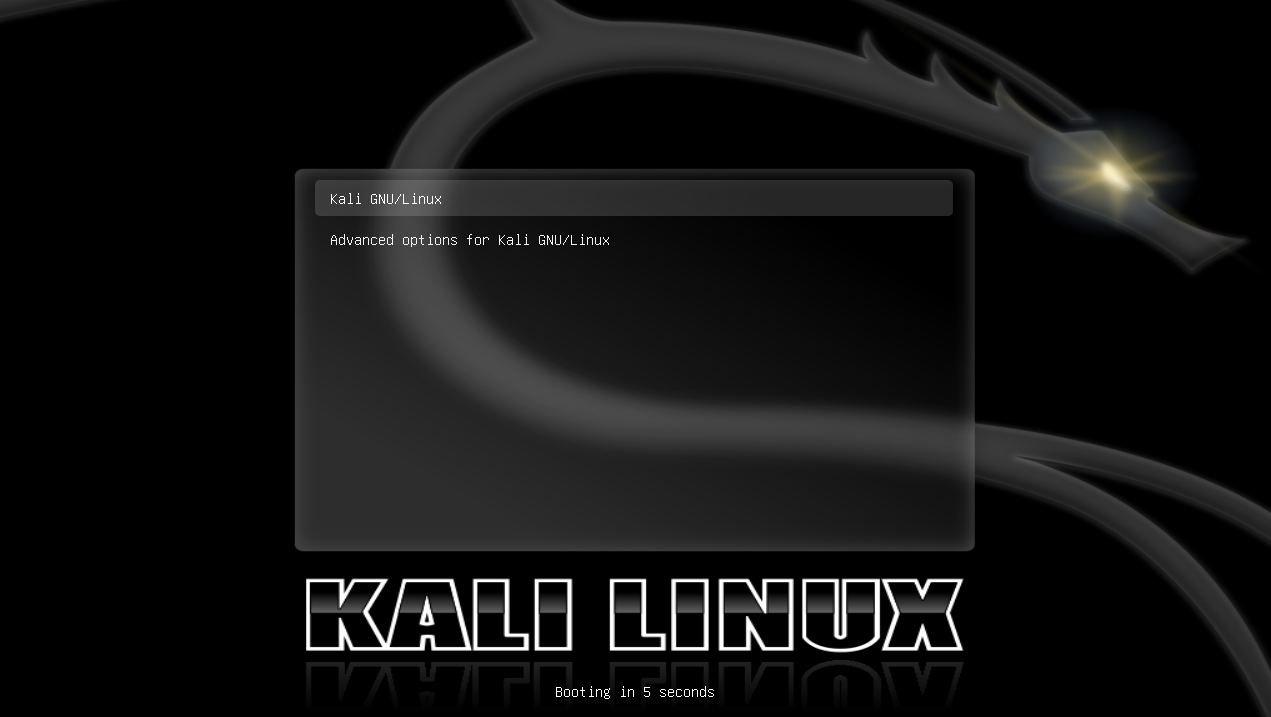
Boot up Kali and follow the instructions.&#x20;

The default login credentials are kali / kali. The password can be changed using the`passwd` command in the CLI.

<figure><img src="https://450836410-files.gitbook.io/~/files/v0/b/gitbook-x-prod.appspot.com/o/spaces%2Fgns9cN7UvH1POIBCfrRn%2Fuploads%2F26ZMIG94baSoateuB3Yt%2Fimage.png?alt=media&#x26;token=a06c3d04-d061-45b8-85fb-518638508e63" alt=""><figcaption></figcaption></figure>

Open up Firefox and navigate to 192.168.2.1. This is the web interface for the pfSense firewall.

Click Advanced > Accept the Risk and Continue

<figure><img src="https://450836410-files.gitbook.io/~/files/v0/b/gitbook-x-prod.appspot.com/o/spaces%2Fgns9cN7UvH1POIBCfrRn%2Fuploads%2FpavPWwf8q4N79IwUSw4s%2Fimage.png?alt=media&#x26;token=8c6e457d-03da-45ef-8e9f-6199f09aadff" alt=""><figcaption></figcaption></figure>

Login to the pfSense console.

The default login is admin / pfsense

<figure><img src="https://450836410-files.gitbook.io/~/files/v0/b/gitbook-x-prod.appspot.com/o/spaces%2Fgns9cN7UvH1POIBCfrRn%2Fuploads%2Fueocm11qDcNG395qFZhm%2Fimage.png?alt=media&#x26;token=29c8113e-8c64-412d-89c7-3bedd6052661" alt=""><figcaption></figcaption></figure>

You will be presented with a pfSense Setup Wizard.

<figure><img src="https://450836410-files.gitbook.io/~/files/v0/b/gitbook-x-prod.appspot.com/o/spaces%2Fgns9cN7UvH1POIBCfrRn%2Fuploads%2FJw9VcTKiFLjdq1tylGvH%2Fimage.png?alt=media&#x26;token=d8e2932c-06ac-463c-bcbc-a10830e3f0ab" alt=""><figcaption></figcaption></figure>

Configure the general pfSense parameters.

* Primary DNS Server: 8.8.8.8
* Secondary DNS Server: 4.4.4.4

<figure><img src="https://450836410-files.gitbook.io/~/files/v0/b/gitbook-x-prod.appspot.com/o/spaces%2Fgns9cN7UvH1POIBCfrRn%2Fuploads%2FjWh8JsSFiw2hw8xYr20d%2Fimage.png?alt=media&#x26;token=1e02cbf0-c786-41f8-89f3-f236aced98c9" alt=""><figcaption></figcaption></figure>

On the next page, untick the Networks.

<figure><img src="https://450836410-files.gitbook.io/~/files/v0/b/gitbook-x-prod.appspot.com/o/spaces%2Fgns9cN7UvH1POIBCfrRn%2Fuploads%2FXQCA59BCCkKlK0gWnhef%2Fimage.png?alt=media&#x26;token=6fb1aacd-9b9c-4ca1-a709-eb80d317c431" alt=""><figcaption></figcaption></figure>

pfSense Wizard is complete.

<figure><img src="https://450836410-files.gitbook.io/~/files/v0/b/gitbook-x-prod.appspot.com/o/spaces%2Fgns9cN7UvH1POIBCfrRn%2Fuploads%2FOnO1Xc6mUeJjyEg748gY%2Fimage.png?alt=media&#x26;token=7561a8fb-b89b-4580-b9f9-b5c3e45a6576" alt=""><figcaption></figcaption></figure>

Next, the interfaces will be configured. Navigate to the Interfaces tab at the top of the page.

Select LAN (em1)

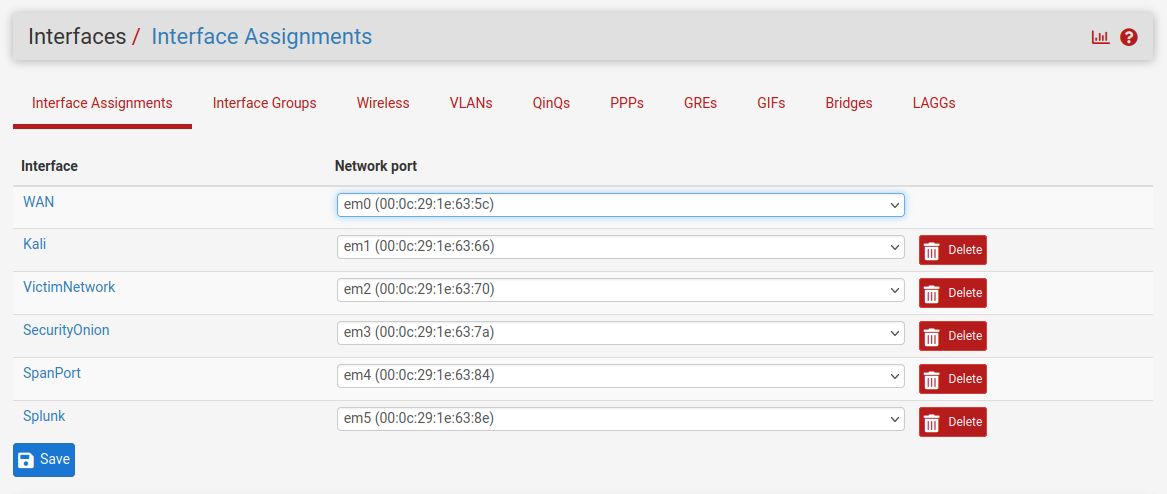
Rename this interface to Kali.

<figure><img src="https://450836410-files.gitbook.io/~/files/v0/b/gitbook-x-prod.appspot.com/o/spaces%2Fgns9cN7UvH1POIBCfrRn%2Fuploads%2Fl3scRNoDVPe12HmKx9ZF%2Fimage.png?alt=media&#x26;token=b98e3982-6695-4e79-876a-9acb68caa361" alt=""><figcaption></figcaption></figure>

Do the same for the others (OPT1, OPT2, OPT3, OPT4).

<figure><img src="https://450836410-files.gitbook.io/~/files/v0/b/gitbook-x-prod.appspot.com/o/spaces%2Fgns9cN7UvH1POIBCfrRn%2Fuploads%2FEvuhZGAzwsAak5Ga82WN%2Fimage.png?alt=media&#x26;token=9d32eb8d-83cc-4bba-b5f3-0f6b5c60a366" alt=""><figcaption></figcaption></figure>

The final interface list should look like this:

<figure><img src="https://450836410-files.gitbook.io/~/files/v0/b/gitbook-x-prod.appspot.com/o/spaces%2Fgns9cN7UvH1POIBCfrRn%2Fuploads%2FHttuFzxKjL1TzOTbnGGN%2Fimage.png?alt=media&#x26;token=97c76973-70f9-451e-ba20-be467dd019ad" alt=""><figcaption></figcaption></figure>

\*Note: Check the box next to "Enable Interface" for OPT3 or the SpanPort.

<figure><img src="https://450836410-files.gitbook.io/~/files/v0/b/gitbook-x-prod.appspot.com/o/spaces%2Fgns9cN7UvH1POIBCfrRn%2Fuploads%2FC4ErUi9HofyqwxDTgQjz%2Fimage.png?alt=media&#x26;token=302c38c6-983e-479e-b847-3f925e0112d4" alt=""><figcaption></figcaption></figure>

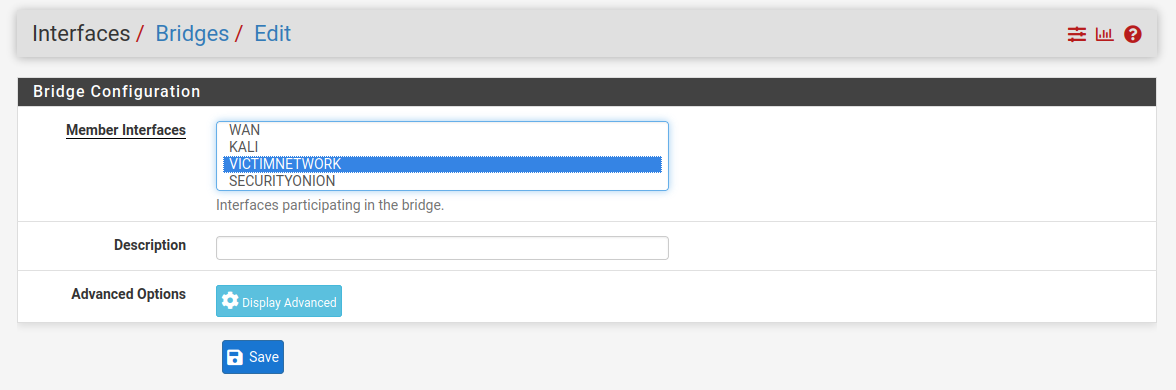
Navigate to Interfaces > Bridges > Add

Add the VICTIMNETWORK as a member interface for the bridge.

<figure><img src="https://450836410-files.gitbook.io/~/files/v0/b/gitbook-x-prod.appspot.com/o/spaces%2Fgns9cN7UvH1POIBCfrRn%2Fuploads%2FVYhRF0whGme2VGwcsveo%2Fimage.png?alt=media&#x26;token=b3b1e8ae-51d2-4537-ab04-6af47c3233c9" alt=""><figcaption></figcaption></figure>

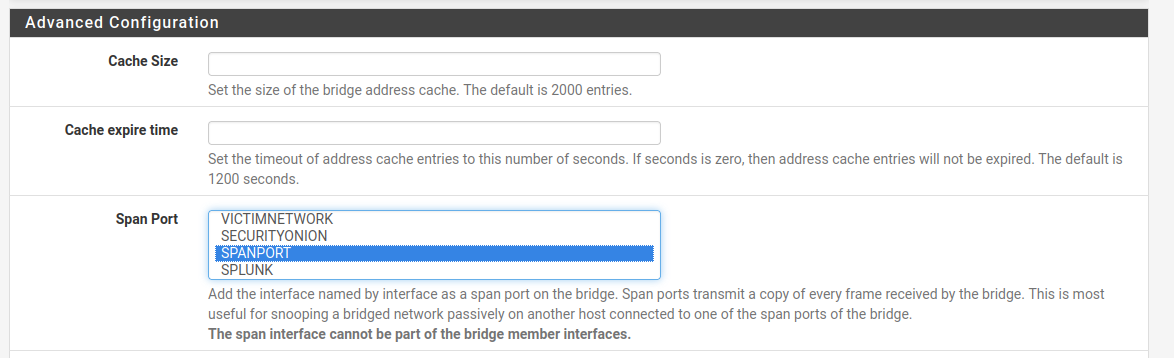
Next, select "Display Advanced" and select SPANPORT as the span port. This will allow the frames received by the bridge from the VICTIMNETWORK to be copied to the span port. The frames will then be sent to Security Onion on EM4/VMNET5.

<figure><img src="https://450836410-files.gitbook.io/~/files/v0/b/gitbook-x-prod.appspot.com/o/spaces%2Fgns9cN7UvH1POIBCfrRn%2Fuploads%2FArMy25VWVQUahUOAqhFU%2Fimage.png?alt=media&#x26;token=c75053c1-f0fb-4bde-85ce-42633cdde054" alt=""><figcaption></figcaption></figure>

Save the new interface.

<figure><img src="https://450836410-files.gitbook.io/~/files/v0/b/gitbook-x-prod.appspot.com/o/spaces%2Fgns9cN7UvH1POIBCfrRn%2Fuploads%2FR3fG8XJXlA1S5gh8IcMK%2Fimage.png?alt=media&#x26;token=96f68b33-68fb-4d8c-8ab0-34e876ec1ad9" alt=""><figcaption></figcaption></figure>

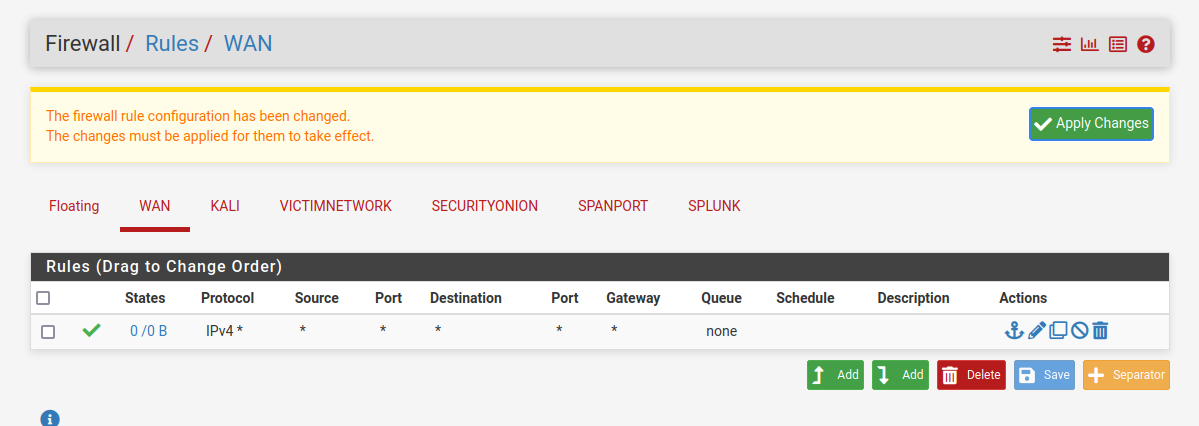
Next, create a rule in the firewall that will allow any protocol to pass through. This will create a "vulnerable" rule so alerts can be generated.

Navigate to Firewall > Rules > WAN > Add

<figure><img src="https://450836410-files.gitbook.io/~/files/v0/b/gitbook-x-prod.appspot.com/o/spaces%2Fgns9cN7UvH1POIBCfrRn%2Fuploads%2F132RN72bgXtDOvxcyuUS%2Fimage.png?alt=media&#x26;token=1be790df-1ea0-49bd-a05d-9909a51a7576" alt=""><figcaption></figcaption></figure>

Ensure the action is set to Pass on the WAN and allow Any protocol.

<figure><img src="https://450836410-files.gitbook.io/~/files/v0/b/gitbook-x-prod.appspot.com/o/spaces%2Fgns9cN7UvH1POIBCfrRn%2Fuploads%2FZbPtKf8vecPGy8bnVYFi%2Fimage.png?alt=media&#x26;token=a7c13e05-a575-4296-95c1-6320dde856c8" alt=""><figcaption></figcaption></figure>

<figure><img src="https://450836410-files.gitbook.io/~/files/v0/b/gitbook-x-prod.appspot.com/o/spaces%2Fgns9cN7UvH1POIBCfrRn%2Fuploads%2FXf8NHpwKcUQUC2zG97ij%2Fimage.png?alt=media&#x26;token=303982e8-bf09-4f3b-bcc5-10fe2d345b29" alt=""><figcaption></figcaption></figure>

Create the same rule for Security Onion.

<figure><img src="https://450836410-files.gitbook.io/~/files/v0/b/gitbook-x-prod.appspot.com/o/spaces%2Fgns9cN7UvH1POIBCfrRn%2Fuploads%2FAwygzqExgSmpA3rxjsYf%2Fimage.png?alt=media&#x26;token=1507d094-908e-450d-8c8b-ffea2891e4b6" alt=""><figcaption></figcaption></figure>

### Part 2 - Security Onion

Security Onion is an open-source platform designed for network security monitoring and intrusion detection. It incorporates various security tools, including intrusion detection systems (IDS), network security monitoring (NSM), and log management, into one platform.

{% embed url="<https://securityonionsolutions.com/software>" %}

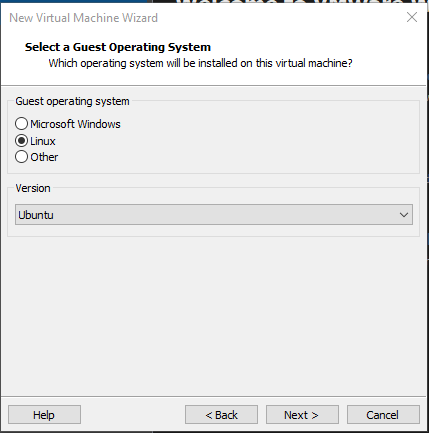
Create a new VM using the Security Onion iso file.

<figure><img src="https://450836410-files.gitbook.io/~/files/v0/b/gitbook-x-prod.appspot.com/o/spaces%2Fgns9cN7UvH1POIBCfrRn%2Fuploads%2FA4v7WSZXMznf5t1Dkw8r%2Fimage.png?alt=media&#x26;token=d9817fda-8b43-4552-b939-99563fb94f01" alt=""><figcaption></figcaption></figure>

Select the Operating System.

<figure><img src="https://450836410-files.gitbook.io/~/files/v0/b/gitbook-x-prod.appspot.com/o/spaces%2Fgns9cN7UvH1POIBCfrRn%2Fuploads%2FOP7GZ7se0PrLHXO5IcwB%2Fimage.png?alt=media&#x26;token=f81e71b1-a4bb-482f-9cab-3dee5752c5d4" alt=""><figcaption></figcaption></figure>

<figure><img src="https://450836410-files.gitbook.io/~/files/v0/b/gitbook-x-prod.appspot.com/o/spaces%2Fgns9cN7UvH1POIBCfrRn%2Fuploads%2FUDINn5zM0rhrATtEcTUR%2Fimage.png?alt=media&#x26;token=7053539e-57a0-49aa-add3-1a0a635b77f5" alt=""><figcaption></figcaption></figure>

Specify the disk size.

Security Onion hardware requirements can be found below:

{% embed url="<https://docs.securityonion.net/en/2.4/hardware.html>" %}

<figure><img src="https://450836410-files.gitbook.io/~/files/v0/b/gitbook-x-prod.appspot.com/o/spaces%2Fgns9cN7UvH1POIBCfrRn%2Fuploads%2FMX6AIuZiQW1q1LPJ2Dhs%2Fimage.png?alt=media&#x26;token=be63a24d-5161-4a65-8746-c1d445e83f8c" alt=""><figcaption></figcaption></figure>

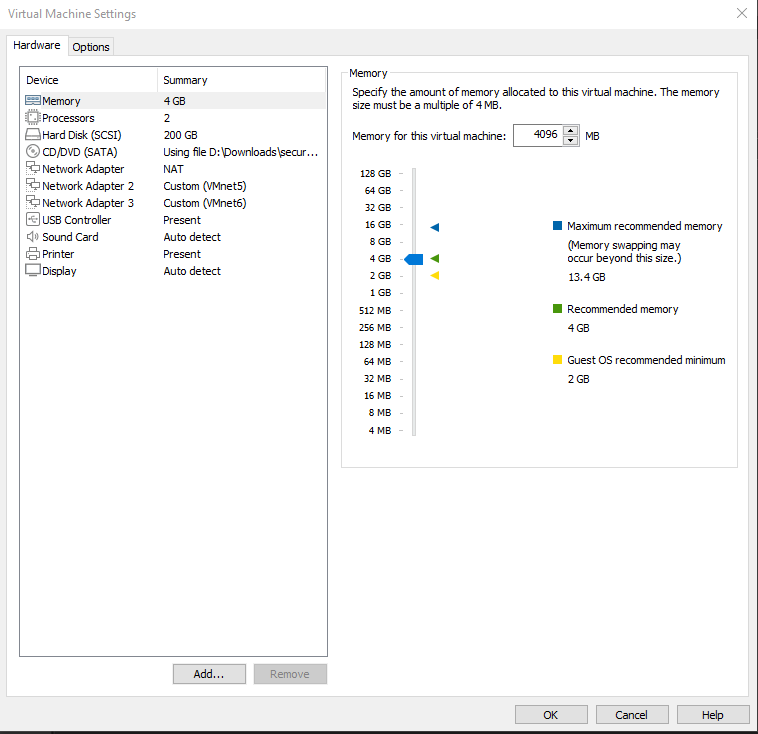
In the hardware setup wizard, add 2 network adapters assigned to VMnet4 and VMnet5.

<figure><img src="https://450836410-files.gitbook.io/~/files/v0/b/gitbook-x-prod.appspot.com/o/spaces%2Fgns9cN7UvH1POIBCfrRn%2Fuploads%2FNsDhfjxqg0sFSsgT2wUR%2Fimage.png?alt=media&#x26;token=250a6154-ca8f-41ae-a074-8665c29e1895" alt=""><figcaption></figcaption></figure>

Increase the Memory. I increased it to 4GB.

<figure><img src="https://450836410-files.gitbook.io/~/files/v0/b/gitbook-x-prod.appspot.com/o/spaces%2Fgns9cN7UvH1POIBCfrRn%2Fuploads%2FaBz038ywqYsW1OlWQ5kx%2Fimage.png?alt=media&#x26;token=9a154171-40b7-411f-a4d0-c41bda22fd20" alt=""><figcaption></figcaption></figure>

Power on the Security Onion VM and go through the setup.

<figure><img src="https://450836410-files.gitbook.io/~/files/v0/b/gitbook-x-prod.appspot.com/o/spaces%2Fgns9cN7UvH1POIBCfrRn%2Fuploads%2FrMiCcSVVFJ4HN3Mr5WpQ%2Fimage.png?alt=media&#x26;token=c700bcb1-b471-4993-a045-693d0955521b" alt=""><figcaption></figcaption></figure>

Select Yes

<figure><img src="https://450836410-files.gitbook.io/~/files/v0/b/gitbook-x-prod.appspot.com/o/spaces%2Fgns9cN7UvH1POIBCfrRn%2Fuploads%2FPFVqEJd6BF1zP4mpzeS3%2Fimage.png?alt=media&#x26;token=21897356-3eb5-40c3-bbc2-4287ff2dc7ce" alt=""><figcaption></figcaption></figure>

Select Install

<figure><img src="https://450836410-files.gitbook.io/~/files/v0/b/gitbook-x-prod.appspot.com/o/spaces%2Fgns9cN7UvH1POIBCfrRn%2Fuploads%2FTnjTdXy62EStx3a23bsD%2Fimage.png?alt=media&#x26;token=b5a891d7-4410-4643-8d35-66bc19568a09" alt=""><figcaption></figcaption></figure>

Select EVAL

<figure><img src="https://450836410-files.gitbook.io/~/files/v0/b/gitbook-x-prod.appspot.com/o/spaces%2Fgns9cN7UvH1POIBCfrRn%2Fuploads%2Fod529F0PxS69GOyoDZXD%2Fimage.png?alt=media&#x26;token=deda3f30-7ce4-4868-a570-1a0ccc1e3173" alt=""><figcaption></figcaption></figure>

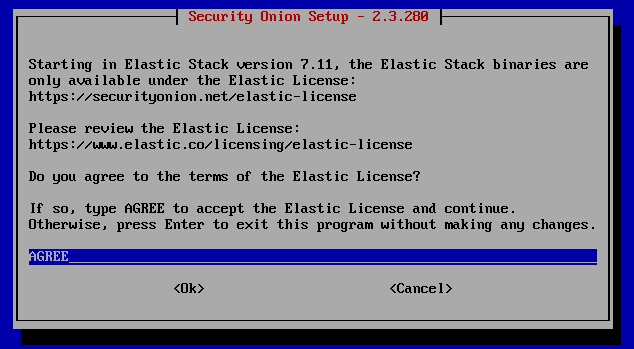
Agree to the license

<figure><img src="https://450836410-files.gitbook.io/~/files/v0/b/gitbook-x-prod.appspot.com/o/spaces%2Fgns9cN7UvH1POIBCfrRn%2Fuploads%2FavHoZ3op6h5FrA4Sleng%2Fimage.png?alt=media&#x26;token=824b0fce-0623-4bae-b88c-22c0e8d7282f" alt=""><figcaption></figcaption></figure>

Select STATIC for the management interface&#x20;

Use ens33 for the NIC

<figure><img src="https://450836410-files.gitbook.io/~/files/v0/b/gitbook-x-prod.appspot.com/o/spaces%2Fgns9cN7UvH1POIBCfrRn%2Fuploads%2Ft7x2nnvTaoBij69lfVRr%2Fimage.png?alt=media&#x26;token=bdad0847-99ee-4517-b9cb-ec04aeb39e13" alt=""><figcaption></figcaption></figure>

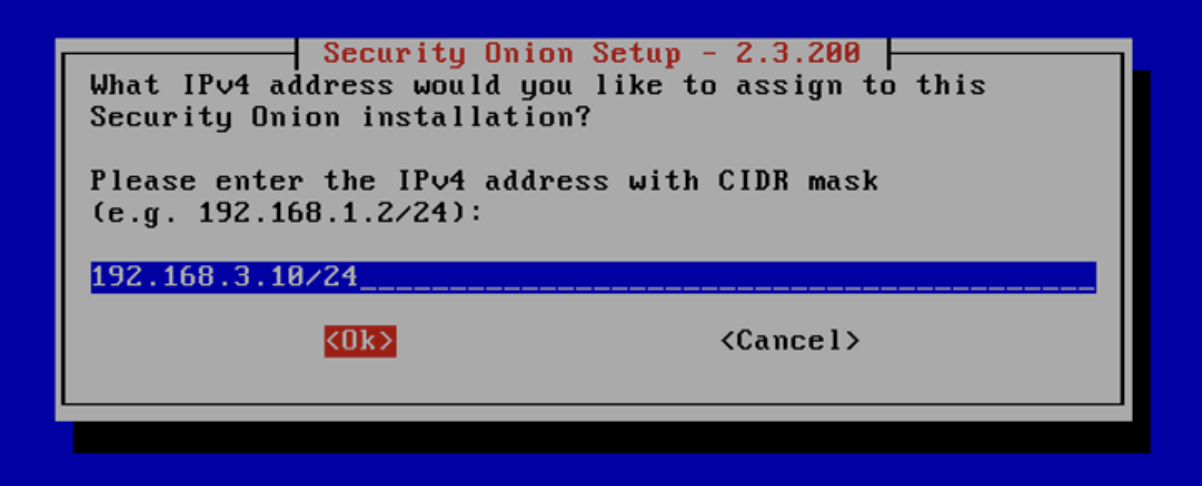
Set the IP to 192.168.3.10/24

<figure><img src="https://450836410-files.gitbook.io/~/files/v0/b/gitbook-x-prod.appspot.com/o/spaces%2Fgns9cN7UvH1POIBCfrRn%2Fuploads%2Fo2PpwKPN72joPulb7nP6%2Fimage.png?alt=media&#x26;token=be965da3-81b2-4b73-8a56-22bd2d78ad01" alt=""><figcaption></figcaption></figure>

Select Standard

<figure><img src="https://450836410-files.gitbook.io/~/files/v0/b/gitbook-x-prod.appspot.com/o/spaces%2Fgns9cN7UvH1POIBCfrRn%2Fuploads%2FOjcAFuPzRKWR17mn5QvQ%2Fimage.png?alt=media&#x26;token=5e580ed9-9765-4cd2-93ac-5a90fb1551ff" alt=""><figcaption></figcaption></figure>

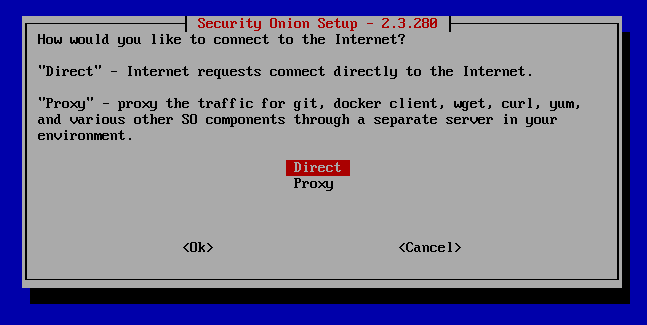
Select Direct for internet connectivity.

<figure><img src="https://450836410-files.gitbook.io/~/files/v0/b/gitbook-x-prod.appspot.com/o/spaces%2Fgns9cN7UvH1POIBCfrRn%2Fuploads%2FXctInbPoUJnlIPqQ4Qzm%2Fimage.png?alt=media&#x26;token=34452658-23e8-46c1-ba19-d80facd04d08" alt=""><figcaption></figcaption></figure>

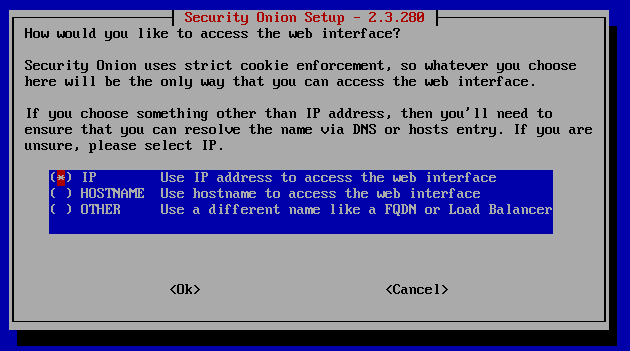
Select IP

This will allow the web interface to be accessed through an IP address.

<figure><img src="https://450836410-files.gitbook.io/~/files/v0/b/gitbook-x-prod.appspot.com/o/spaces%2Fgns9cN7UvH1POIBCfrRn%2Fuploads%2FMEJbtppYFvmK7aZnGP1W%2Fimage.png?alt=media&#x26;token=5de1e49a-884a-482a-b745-16ce8c590047" alt=""><figcaption></figcaption></figure>

After this window, you will be prompted to enter an email address and password to access the web interface.

Use the default for the NTP server

<figure><img src="https://450836410-files.gitbook.io/~/files/v0/b/gitbook-x-prod.appspot.com/o/spaces%2Fgns9cN7UvH1POIBCfrRn%2Fuploads%2FOC3xCiCL0NIejBB87bwP%2Fimage.png?alt=media&#x26;token=21ad757e-6511-420e-bd76-300ca94ac9d6" alt=""><figcaption></figcaption></figure>

Select No&#x20;

An Ubuntu machine will be created to use for access to the web interface.

<figure><img src="https://450836410-files.gitbook.io/~/files/v0/b/gitbook-x-prod.appspot.com/o/spaces%2Fgns9cN7UvH1POIBCfrRn%2Fuploads%2FLiF1YRqZhxdRlDJYr6Ex%2Fimage.png?alt=media&#x26;token=2cd74634-8825-4328-8e8d-11c9c472e643" alt=""><figcaption></figcaption></figure>

On the summary page, review the configuration and select Yes if everything looks correct. Take note of the management IP.

#### Security Onion Web Interface

Next, download an Ubuntu Desktop iso file and create a new VM.

{% embed url="<https://ubuntu.com/download/desktop>" %}
Once complete, navigate to the CLI and run `ifconfig` command to get the IP address.

If there is an error, it is possible that net-tools have not been downloaded. Run `sudo apt install net-tools`

Take note of the IP address. It should be an IP from the VMware DHCP server since the machine is on the VMware NAT.

<figure><img src="https://450836410-files.gitbook.io/~/files/v0/b/gitbook-x-prod.appspot.com/o/spaces%2Fgns9cN7UvH1POIBCfrRn%2Fuploads%2FItrKAWatR49PKmT751Lj%2Fimage.png?alt=media&#x26;token=143bfbdf-adcf-4274-8420-87063da37e50" alt=""><figcaption></figcaption></figure>

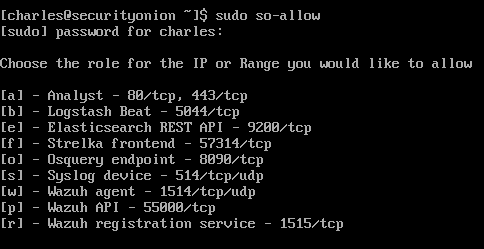
Return to Security Onion and run `sudo so-allow`

Select option \[a]

<figure><img src="https://450836410-files.gitbook.io/~/files/v0/b/gitbook-x-prod.appspot.com/o/spaces%2Fgns9cN7UvH1POIBCfrRn%2Fuploads%2FiJ0d2xFDr1tlnzb4dij8%2Fimage.png?alt=media&#x26;token=9428861f-9259-4d63-8c14-022c914eca8b" alt=""><figcaption></figcaption></figure>

Enter the IP address of the Ubuntu VM.

<figure><img src="https://450836410-files.gitbook.io/~/files/v0/b/gitbook-x-prod.appspot.com/o/spaces%2Fgns9cN7UvH1POIBCfrRn%2Fuploads%2FWMSWIgrPgVpUGT9htwjt%2Fimage.png?alt=media&#x26;token=b8506cfc-8454-4dd5-9118-640e9c83376e" alt=""><figcaption></figcaption></figure>

Navigate back to the Ubuntu VM and open Firefox.

Go to the IP of the Web Interface for Security Onion.

Select Advanced

<figure><img src="https://450836410-files.gitbook.io/~/files/v0/b/gitbook-x-prod.appspot.com/o/spaces%2Fgns9cN7UvH1POIBCfrRn%2Fuploads%2FUYxzM8FK9e6s0QZrz7Yn%2Fimage.png?alt=media&#x26;token=2ef8bfa9-2cb7-4cca-b3d9-b3d48fe1743a" alt=""><figcaption></figcaption></figure>

Select Accept the Risk and Continue

<figure><img src="https://450836410-files.gitbook.io/~/files/v0/b/gitbook-x-prod.appspot.com/o/spaces%2Fgns9cN7UvH1POIBCfrRn%2Fuploads%2FAIPPzAO8M6X475P3fomJ%2Fimage.png?alt=media&#x26;token=abb79531-9e54-44cf-b531-386b7d7400e4" alt=""><figcaption></figcaption></figure>

At the login screen, enter the credentials that were created during the Security Onion setup.

<figure><img src="https://450836410-files.gitbook.io/~/files/v0/b/gitbook-x-prod.appspot.com/o/spaces%2Fgns9cN7UvH1POIBCfrRn%2Fuploads%2FbH7sSlPmPYLx7Xk0GGpM%2Fimage.png?alt=media&#x26;token=41ad9166-022c-4d95-bd31-08ac774b0976" alt=""><figcaption></figcaption></figure>

We're logged in!

<figure><img src="https://450836410-files.gitbook.io/~/files/v0/b/gitbook-x-prod.appspot.com/o/spaces%2Fgns9cN7UvH1POIBCfrRn%2Fuploads%2FU2pESiST9mx3iSsAIFha%2Fimage.png?alt=media&#x26;token=93aabce7-d324-4193-867a-aa535391a71e" alt=""><figcaption></figcaption></figure>

Security Onion has several features built-in (e.g., Network Security Monitoring, IDS, Logging, Packet Capture, Alerting, Reporting, and more).  Visit the link below to find out all of its capabilities:&#x20;

{% embed url="<https://docs.securityonion.net/en/2.3/about.html>" %}

### Part 3 - Windows

#### Active Directory / Domain Controller

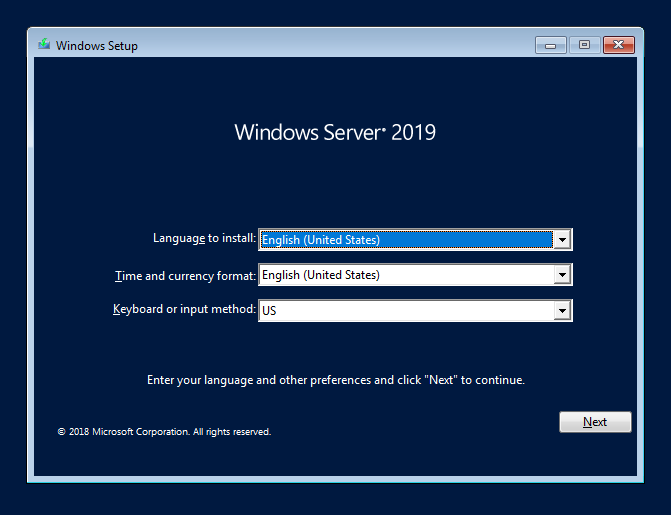
Download the Windows 2019 iso image and create a new VM.

{% embed url="<https://www.microsoft.com/en-us/evalcenter/download-windows-server-2019>" %}

In the Hardware settings, add another network adapter for VMnet4.

<figure><img src="https://450836410-files.gitbook.io/~/files/v0/b/gitbook-x-prod.appspot.com/o/spaces%2Fgns9cN7UvH1POIBCfrRn%2Fuploads%2F4gstctqmeFxJED4HWzhK%2Fimage.png?alt=media&#x26;token=6a42b845-ad8b-4ed7-a24c-1a2720f2ee30" alt=""><figcaption></figcaption></figure>

Start the Windows Server VM.

<figure><img src="https://450836410-files.gitbook.io/~/files/v0/b/gitbook-x-prod.appspot.com/o/spaces%2Fgns9cN7UvH1POIBCfrRn%2Fuploads%2FmaBdn4xWLA73xYdwPnXy%2Fimage.png?alt=media&#x26;token=1d5eb5b3-93dc-448f-86f4-916e1cc736e6" alt=""><figcaption></figcaption></figure>

<figure><img src="https://450836410-files.gitbook.io/~/files/v0/b/gitbook-x-prod.appspot.com/o/spaces%2Fgns9cN7UvH1POIBCfrRn%2Fuploads%2FlkXTi5vT6Ej1tt0cngDz%2Fimage.png?alt=media&#x26;token=bdb8ccf0-0bf9-46f3-bb76-0903d6443f4d" alt=""><figcaption></figcaption></figure>

Select the Windows Server 2019 Standard Evaluation (Desktop Experience)

<figure><img src="https://450836410-files.gitbook.io/~/files/v0/b/gitbook-x-prod.appspot.com/o/spaces%2Fgns9cN7UvH1POIBCfrRn%2Fuploads%2Fi3NvLSXgSTJWRUllgAOr%2Fimage.png?alt=media&#x26;token=b432dc11-355a-40bd-a739-75889a790532" alt=""><figcaption></figcaption></figure>

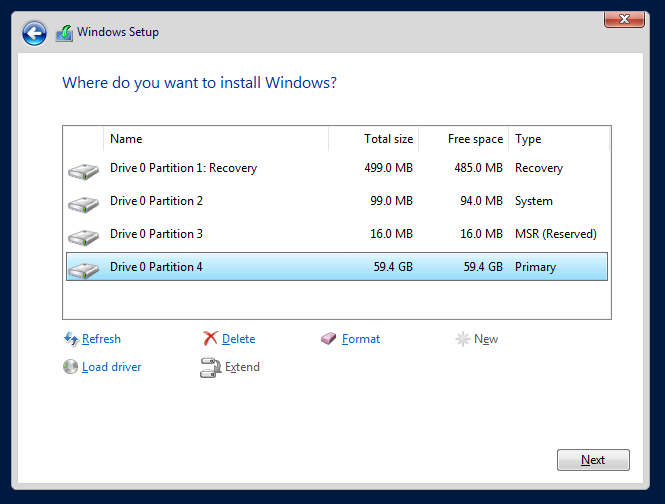
Click Custom Install and Partition 4 (Primary)

<figure><img src="https://450836410-files.gitbook.io/~/files/v0/b/gitbook-x-prod.appspot.com/o/spaces%2Fgns9cN7UvH1POIBCfrRn%2Fuploads%2FB0SAnaUzDn5uSVn9E4bX%2Fimage.png?alt=media&#x26;token=d3b3e82c-afcf-4fb5-817c-7563a4c5a240" alt=""><figcaption></figcaption></figure>

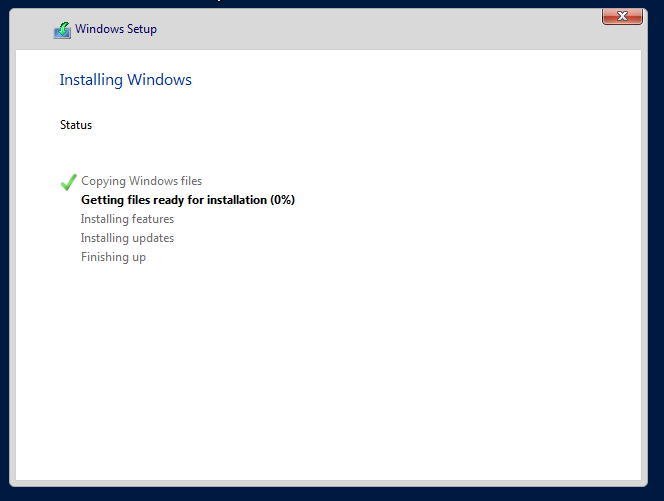
Let Windows Install.

<figure><img src="https://450836410-files.gitbook.io/~/files/v0/b/gitbook-x-prod.appspot.com/o/spaces%2Fgns9cN7UvH1POIBCfrRn%2Fuploads%2F3ATCEFbudrQKHqBvb626%2Fimage.png?alt=media&#x26;token=3255152f-4270-4117-9ed4-737cf058bcba" alt=""><figcaption></figcaption></figure>

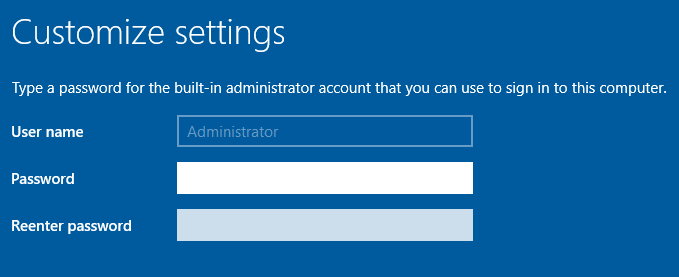
Enter a Password for the Administrator account.

<figure><img src="https://450836410-files.gitbook.io/~/files/v0/b/gitbook-x-prod.appspot.com/o/spaces%2Fgns9cN7UvH1POIBCfrRn%2Fuploads%2FoEMwulUm2XfWc8jVU1gV%2Fimage.png?alt=media&#x26;token=7c14beea-c63c-4aab-80c2-7509bf28f5cf" alt=""><figcaption></figcaption></figure>

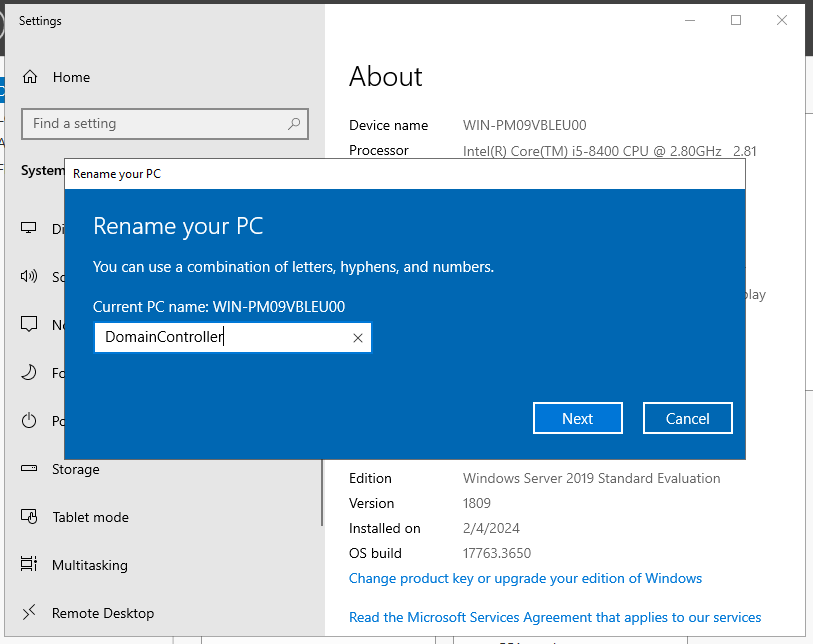
Name the PC.

<figure><img src="https://450836410-files.gitbook.io/~/files/v0/b/gitbook-x-prod.appspot.com/o/spaces%2Fgns9cN7UvH1POIBCfrRn%2Fuploads%2Fo7lQYb2C6mYwqVTwZnDp%2Fimage.png?alt=media&#x26;token=9d029277-dfd9-4543-8550-c0d66b7d2aa4" alt=""><figcaption></figcaption></figure>

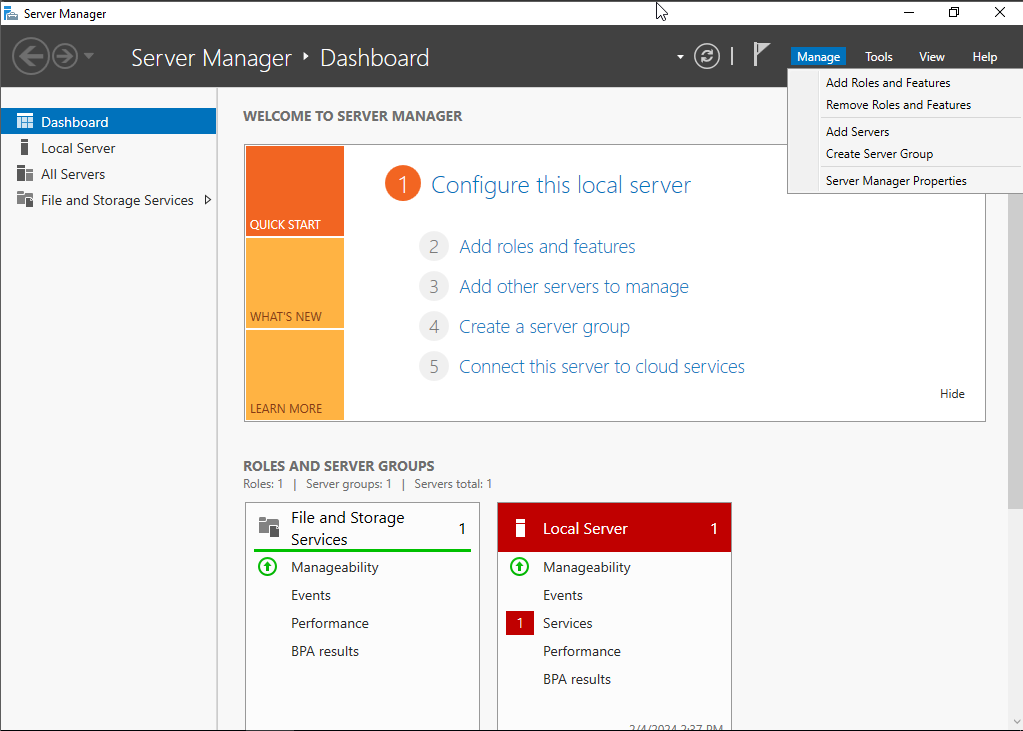
Within Server Manger, provision services for the Domain Controller.&#x20;

Select Manage in the top ribbon and select Add Roles and Features

<figure><img src="https://450836410-files.gitbook.io/~/files/v0/b/gitbook-x-prod.appspot.com/o/spaces%2Fgns9cN7UvH1POIBCfrRn%2Fuploads%2FJtXLgPnxYkDnIDkC1Aa5%2Fimage.png?alt=media&#x26;token=53a78853-210a-481a-b56e-058202ba301f" alt=""><figcaption></figcaption></figure>

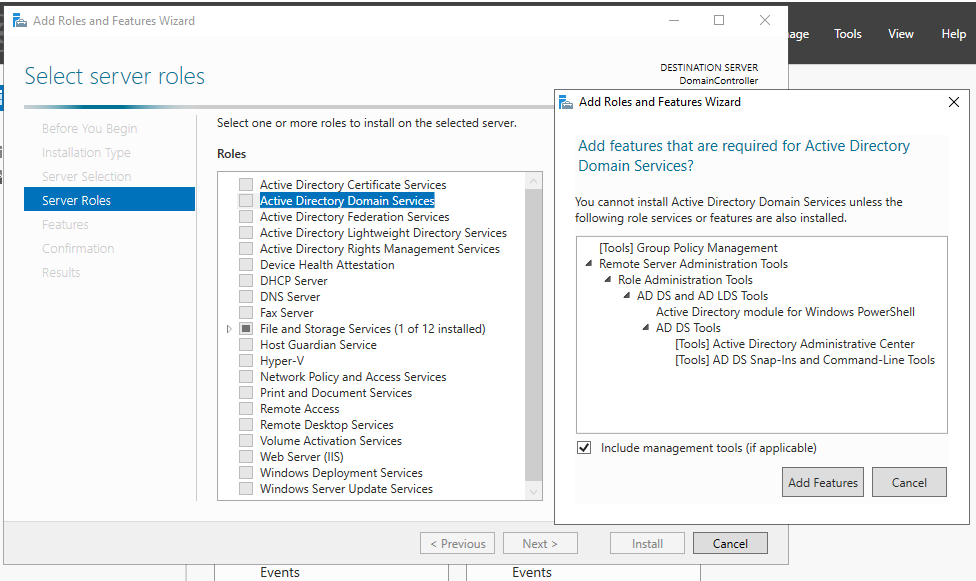
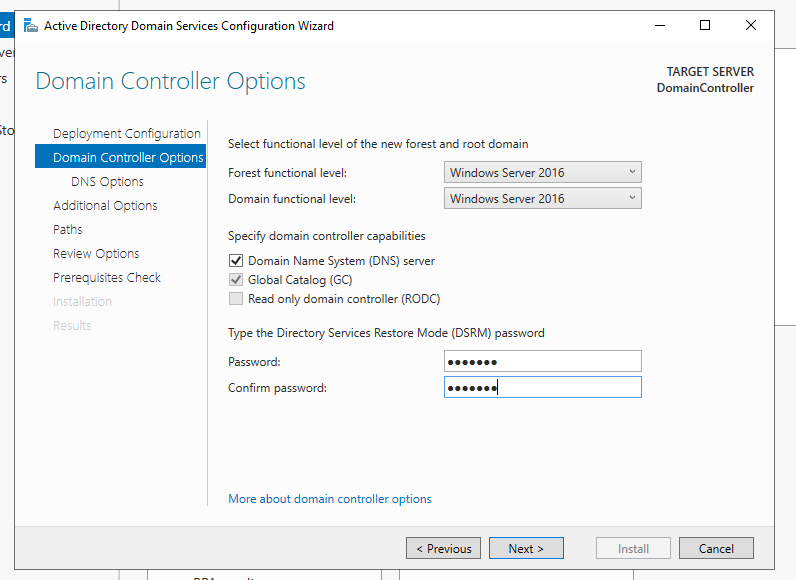
Within the Wizard, select Active Directory Domain Services and then install.

<figure><img src="https://450836410-files.gitbook.io/~/files/v0/b/gitbook-x-prod.appspot.com/o/spaces%2Fgns9cN7UvH1POIBCfrRn%2Fuploads%2FXaVbRUUs35H389ruRVP4%2Fimage.png?alt=media&#x26;token=77c986cc-3b62-427d-9c99-3289e516e1dc" alt=""><figcaption></figcaption></figure>

Once the installation is complete, there will be a notification to promote the server to a domain controller.

Click through the wizard and create a domain name for the forest.

Set the password.

<figure><img src="https://450836410-files.gitbook.io/~/files/v0/b/gitbook-x-prod.appspot.com/o/spaces%2Fgns9cN7UvH1POIBCfrRn%2Fuploads%2Fx5IVldzoDfkrbYYoLnJ6%2Fimage.png?alt=media&#x26;token=2b125897-eb28-4022-817d-ae508075802f" alt=""><figcaption></figcaption></figure>

Ensure the domain name is correct.

<figure><img src="https://450836410-files.gitbook.io/~/files/v0/b/gitbook-x-prod.appspot.com/o/spaces%2Fgns9cN7UvH1POIBCfrRn%2Fuploads%2FoRyll6ggU0jLGiY6y5yT%2Fimage.png?alt=media&#x26;token=a2d35458-66ed-4937-8014-e571f8d97d3c" alt=""><figcaption></figcaption></figure>

Select Install and reboot the server.

<figure><img src="https://450836410-files.gitbook.io/~/files/v0/b/gitbook-x-prod.appspot.com/o/spaces%2Fgns9cN7UvH1POIBCfrRn%2Fuploads%2FK20XpKKAbxBz4gldJPHp%2Fimage.png?alt=media&#x26;token=900ff209-adb2-44cb-8f1a-48d31402592c" alt=""><figcaption></figcaption></figure>

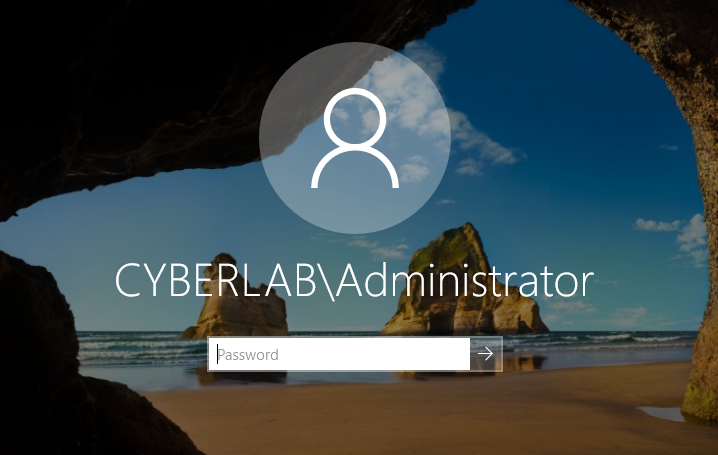
After the domain controller is rebooted, log in.

<figure><img src="https://450836410-files.gitbook.io/~/files/v0/b/gitbook-x-prod.appspot.com/o/spaces%2Fgns9cN7UvH1POIBCfrRn%2Fuploads%2FRzidpUAi5gBVy0yuHgcU%2Fimage.png?alt=media&#x26;token=f5537324-d914-4b16-9409-d274a1f3f9d2" alt=""><figcaption></figcaption></figure>

In Server Manager, navigate to Manage > Add Roles and Features&#x20;

Within the wizard, select Active Directory Certificate Services

<figure><img src="https://450836410-files.gitbook.io/~/files/v0/b/gitbook-x-prod.appspot.com/o/spaces%2Fgns9cN7UvH1POIBCfrRn%2Fuploads%2FVxyemxjXZ9f9vFoibHra%2Fimage.png?alt=media&#x26;token=36dcc91c-6333-4664-9d87-9abd96b1ccad" alt=""><figcaption></figcaption></figure>

Go through the steps and install.

<figure><img src="https://450836410-files.gitbook.io/~/files/v0/b/gitbook-x-prod.appspot.com/o/spaces%2Fgns9cN7UvH1POIBCfrRn%2Fuploads%2Fos8pSVq5AeSKcBpX0Sqs%2Fimage.png?alt=media&#x26;token=4115bb3a-5453-4ae5-94ba-25992de754d4" alt=""><figcaption></figcaption></figure>

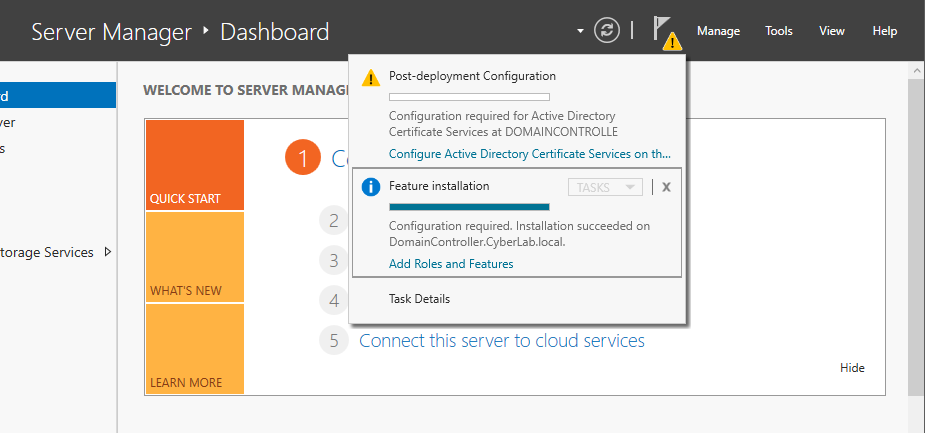
There will be a new notification regarding Active Directory Certificate Services.

<figure><img src="https://450836410-files.gitbook.io/~/files/v0/b/gitbook-x-prod.appspot.com/o/spaces%2Fgns9cN7UvH1POIBCfrRn%2Fuploads%2F5wZvbWhKr7o6LhNQtRAw%2Fimage.png?alt=media&#x26;token=a01f0f43-d1de-4136-965b-e255d31d69ab" alt=""><figcaption></figcaption></figure>

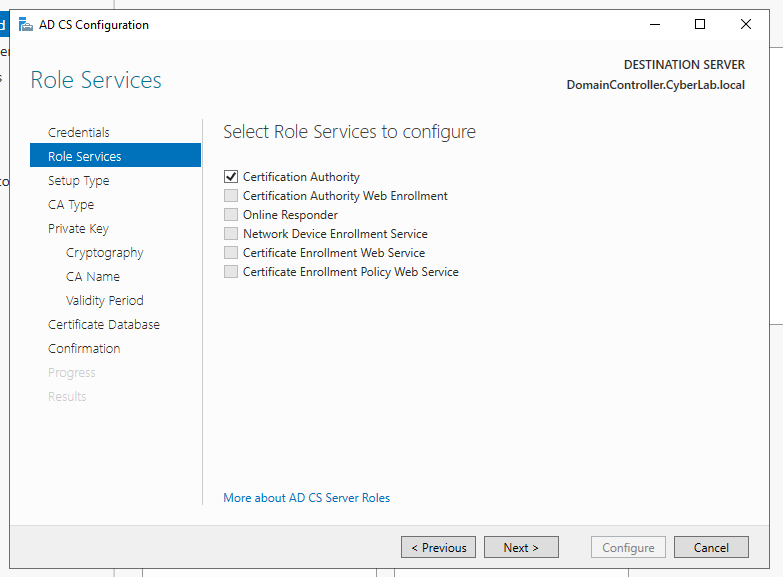
Click Change and enter the credentials.

<figure><img src="https://450836410-files.gitbook.io/~/files/v0/b/gitbook-x-prod.appspot.com/o/spaces%2Fgns9cN7UvH1POIBCfrRn%2Fuploads%2F28Va1QP91KnMSUabsdqq%2Fimage.png?alt=media&#x26;token=ef48e0f6-7d7c-49d9-a97e-98724797d614" alt=""><figcaption></figcaption></figure>

Select Certification Authority

<figure><img src="https://450836410-files.gitbook.io/~/files/v0/b/gitbook-x-prod.appspot.com/o/spaces%2Fgns9cN7UvH1POIBCfrRn%2Fuploads%2FRMUcqyKgVEP5f9avCDUj%2Fimage.png?alt=media&#x26;token=39000be2-e3b2-4e6a-a469-7b92ae12f862" alt=""><figcaption></figcaption></figure>

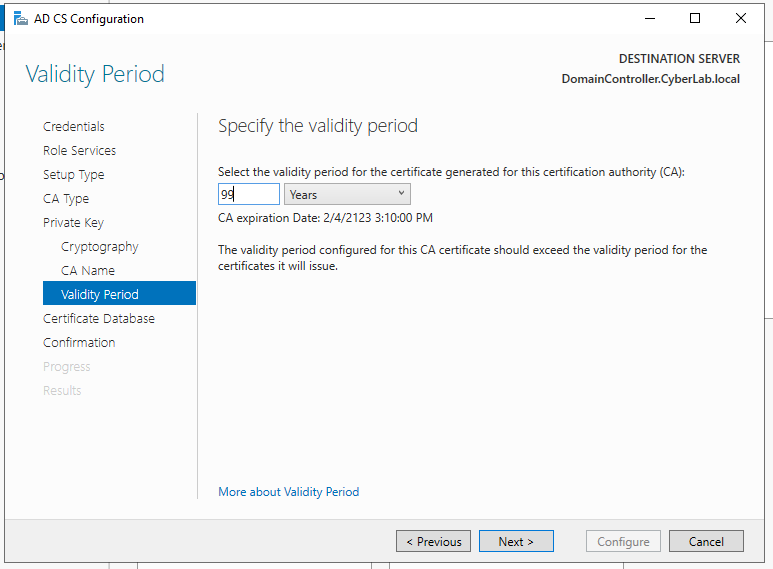
For the purpose of this lab, set the validity period to 99 years.

<figure><img src="https://450836410-files.gitbook.io/~/files/v0/b/gitbook-x-prod.appspot.com/o/spaces%2Fgns9cN7UvH1POIBCfrRn%2Fuploads%2FRKI1w7uPE1gworj443l8%2Fimage.png?alt=media&#x26;token=544efb00-4e81-4092-98a8-bf245600feaf" alt=""><figcaption></figcaption></figure>

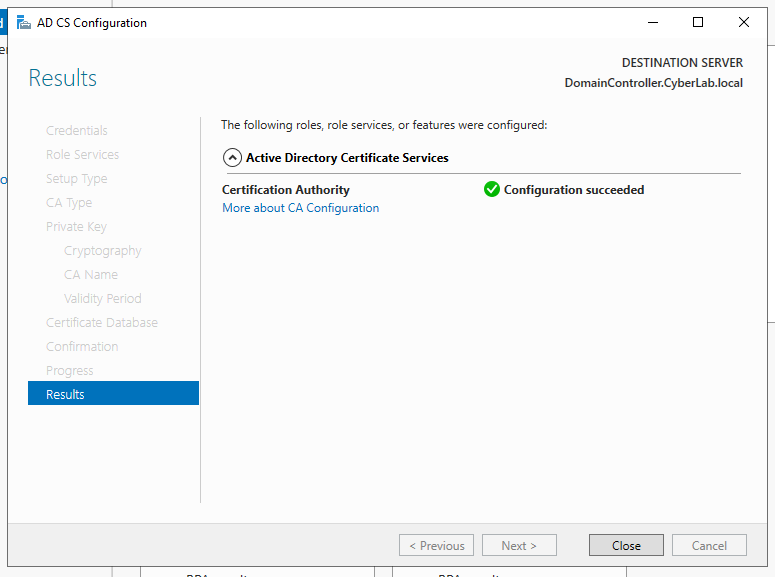
Complete the configuration and restart the server.

<figure><img src="https://450836410-files.gitbook.io/~/files/v0/b/gitbook-x-prod.appspot.com/o/spaces%2Fgns9cN7UvH1POIBCfrRn%2Fuploads%2FCCtGDi6zTisGsoF466Go%2Fimage.png?alt=media&#x26;token=27adc2d2-ad1c-4030-84cf-c99e170baeb5" alt=""><figcaption></figcaption></figure>

Adding Users to AD

Navigate to Tools > Active Directory Users and Computers

Right-click on the Users folder > New > User

<figure><img src="https://450836410-files.gitbook.io/~/files/v0/b/gitbook-x-prod.appspot.com/o/spaces%2Fgns9cN7UvH1POIBCfrRn%2Fuploads%2FO7bKVBMbKTYGfGEauMmb%2Fimage.png?alt=media&#x26;token=ddc967e5-601f-4e54-980c-d06d8494c86d" alt=""><figcaption></figcaption></figure>

Create a new user and set their password.

<figure><img src="https://450836410-files.gitbook.io/~/files/v0/b/gitbook-x-prod.appspot.com/o/spaces%2Fgns9cN7UvH1POIBCfrRn%2Fuploads%2FGi79H8edZ42L0Cy9fA3l%2Fimage.png?alt=media&#x26;token=fb7f4d4a-37bc-484c-b154-c0c060609d88" alt=""><figcaption></figcaption></figure>

In the Windows search bar, search for Windows Defender Firewall.

Turn off all settings as pfSense will be used as the default gateway.

<figure><img src="https://450836410-files.gitbook.io/~/files/v0/b/gitbook-x-prod.appspot.com/o/spaces%2Fgns9cN7UvH1POIBCfrRn%2Fuploads%2FYk6XeMjE0Cvh5HMr7a6c%2Fimage.png?alt=media&#x26;token=36071728-517c-4a65-a289-dd770902fcf1" alt=""><figcaption></figcaption></figure>

Navigate to the Control Panel > Networks and Sharing Center

Change adapter settings > right click Adapter > Properties > IPV4

Enter the configurations in the screenshot below:

<figure><img src="https://450836410-files.gitbook.io/~/files/v0/b/gitbook-x-prod.appspot.com/o/spaces%2Fgns9cN7UvH1POIBCfrRn%2Fuploads%2Fi1hVWcFGWQuLnztWUcoV%2Fimage.png?alt=media&#x26;token=9c8c5a78-a5b4-4cdc-aa18-b081584e42fd" alt=""><figcaption></figcaption></figure>

#### Windows 10 Machine

Download the Windows 10 iso and create a new VM.

In the Hardware settings, add a network adapter assigned to VMnet4.

<figure><img src="https://450836410-files.gitbook.io/~/files/v0/b/gitbook-x-prod.appspot.com/o/spaces%2Fgns9cN7UvH1POIBCfrRn%2Fuploads%2F8UnhEteC6hPFqnZOjAt6%2Fimage.png?alt=media&#x26;token=b193b636-92bd-4c08-9abb-524f862a498c" alt=""><figcaption></figcaption></figure>

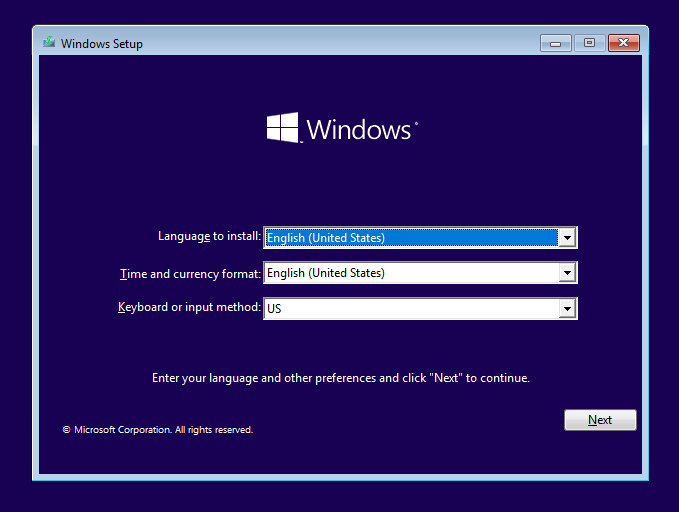
Start the VM and begin the installation process.

<figure><img src="https://450836410-files.gitbook.io/~/files/v0/b/gitbook-x-prod.appspot.com/o/spaces%2Fgns9cN7UvH1POIBCfrRn%2Fuploads%2FrCMNXj0TbBBSp0wGYg8d%2Fimage.png?alt=media&#x26;token=0c94a499-dfd8-4fd1-a43a-3acaeec9d76a" alt=""><figcaption></figcaption></figure>

<figure><img src="https://450836410-files.gitbook.io/~/files/v0/b/gitbook-x-prod.appspot.com/o/spaces%2Fgns9cN7UvH1POIBCfrRn%2Fuploads%2FSj3L1SkqMD3wHsjEiAoo%2Fimage.png?alt=media&#x26;token=4efafdb1-a3cc-475a-9a8c-5718659f06f9" alt=""><figcaption></figcaption></figure>

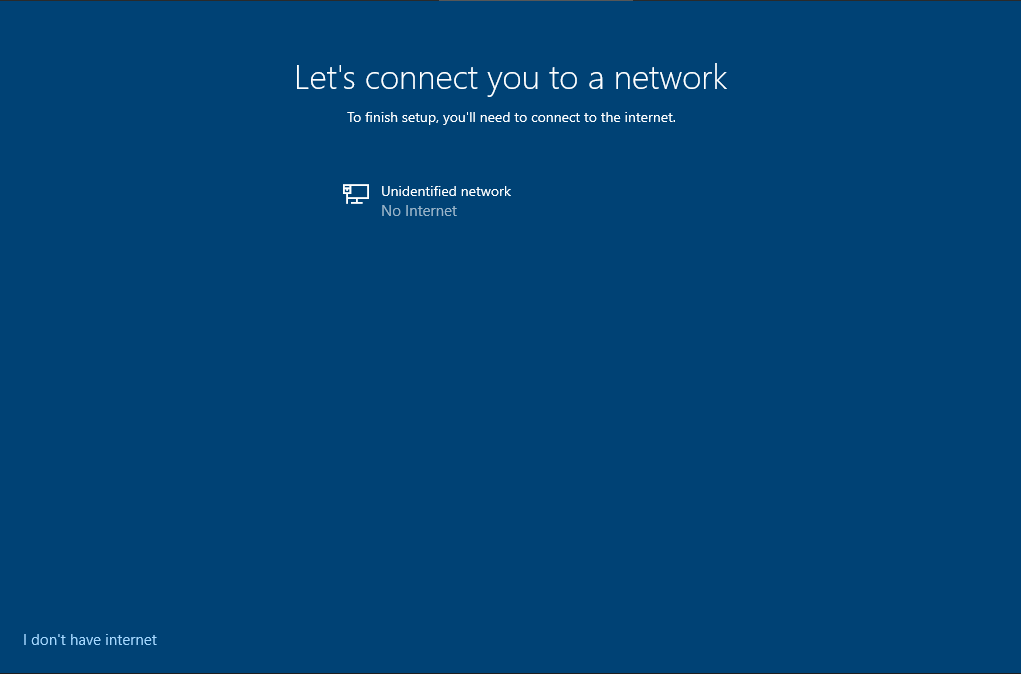
When prompted to connect to a network, select the "I don't have internet" at the bottom left of the screen.

<figure><img src="https://450836410-files.gitbook.io/~/files/v0/b/gitbook-x-prod.appspot.com/o/spaces%2Fgns9cN7UvH1POIBCfrRn%2Fuploads%2FJlCJ19TpExoAWpPeX9bf%2Fimage.png?alt=media&#x26;token=a4110a20-64ee-4aeb-9b3c-4c2e05c70bd8" alt=""><figcaption></figcaption></figure>

Continue with the limited setup.

Once the Windows install is complete, install VMware tools.

VMware tools provide additional features for guest operating systems.

<figure><img src="https://450836410-files.gitbook.io/~/files/v0/b/gitbook-x-prod.appspot.com/o/spaces%2Fgns9cN7UvH1POIBCfrRn%2Fuploads%2FbvuxB1O6gl6N7C6DZNGi%2Fimage.png?alt=media&#x26;token=fc8cf629-bebc-46cf-a139-08cc4414eec9" alt=""><figcaption></figcaption></figure>

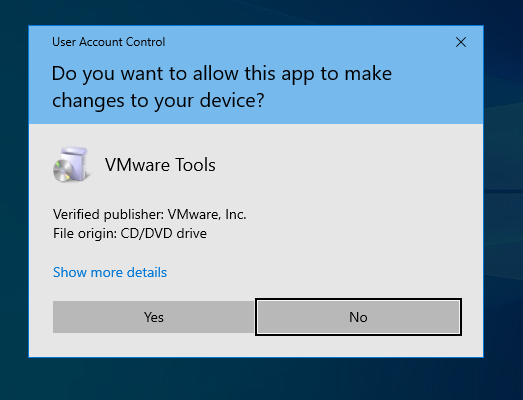
Select Yes to allow VMware tools to make changes.

<figure><img src="https://450836410-files.gitbook.io/~/files/v0/b/gitbook-x-prod.appspot.com/o/spaces%2Fgns9cN7UvH1POIBCfrRn%2Fuploads%2FddnXqhqfHdovh37gY6Rz%2Fimage.png?alt=media&#x26;token=0a6b1783-f898-4d89-a9df-3dc7b055a372" alt=""><figcaption></figcaption></figure>

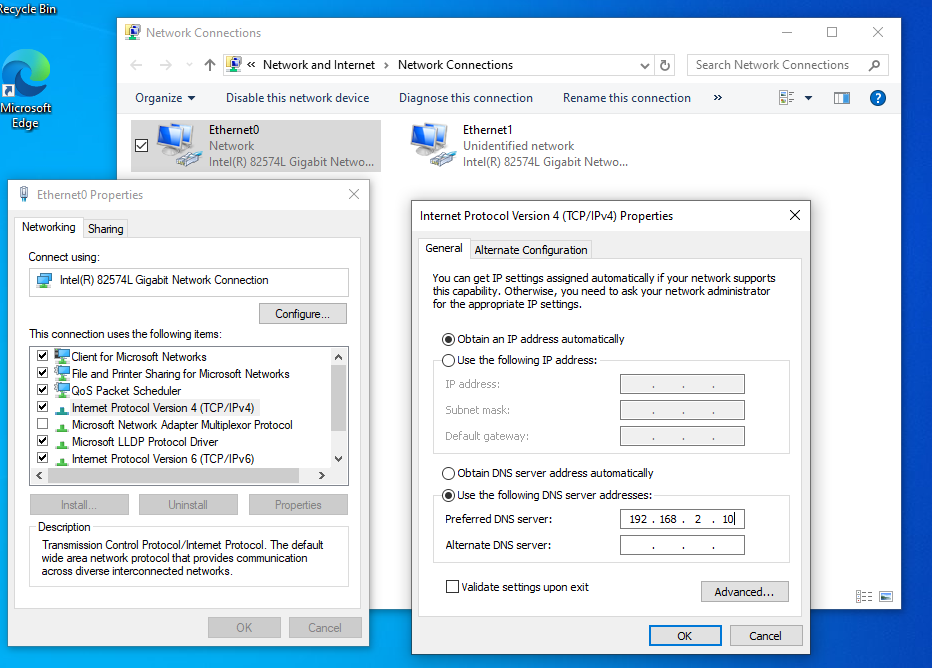
Naviagte to Settings > Network Connections > right click Ethernet0 > Properties

Configure the IPV4 settings like the screenshot below:

<figure><img src="https://450836410-files.gitbook.io/~/files/v0/b/gitbook-x-prod.appspot.com/o/spaces%2Fgns9cN7UvH1POIBCfrRn%2Fuploads%2FGARHhv6UIj8twS6G5kiw%2Fimage.png?alt=media&#x26;token=5b4cfe52-04d3-42e8-8ff9-179b2a0c28a3" alt=""><figcaption></figcaption></figure>

The next step involves adding the domain controller to the DNS server in pfSense.

Navigate to the pfSense web interface > Services > DHCP Server > VICTIMNETWORK

Add the domain controller under DNS Servers.

<figure><img src="https://450836410-files.gitbook.io/~/files/v0/b/gitbook-x-prod.appspot.com/o/spaces%2Fgns9cN7UvH1POIBCfrRn%2Fuploads%2FAyE2MSfiQDnNkqfhRNbc%2Fimage.png?alt=media&#x26;token=9165337e-90b5-4837-a10d-74d9a414d3e3" alt=""><figcaption></figcaption></figure>

<figure><img src="https://450836410-files.gitbook.io/~/files/v0/b/gitbook-x-prod.appspot.com/o/spaces%2Fgns9cN7UvH1POIBCfrRn%2Fuploads%2FNiB7ZhooWq0vkpEbrlpD%2Fimage.png?alt=media&#x26;token=935ad776-a0d7-4274-9225-5a4d81babb8d" alt=""><figcaption></figcaption></figure>

<figure><img src="https://450836410-files.gitbook.io/~/files/v0/b/gitbook-x-prod.appspot.com/o/spaces%2Fgns9cN7UvH1POIBCfrRn%2Fuploads%2F28jW8yXvOie3mKUOsW7z%2Fimage.png?alt=media&#x26;token=e6f26739-3fe1-4659-b92e-3bdac6bd249c" alt=""><figcaption></figcaption></figure>

Next, search for "domain" in the Windows search bar.

Click Connect

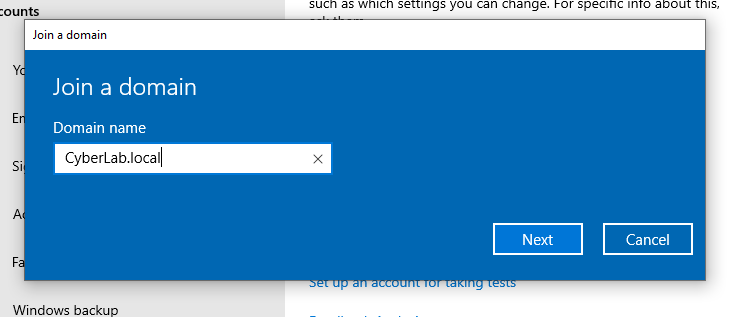
Enter the domain name that was set in the domain controller (CyberLab.local).

<figure><img src="https://450836410-files.gitbook.io/~/files/v0/b/gitbook-x-prod.appspot.com/o/spaces%2Fgns9cN7UvH1POIBCfrRn%2Fuploads%2F8PoWLYQ4u1cWXV7qRnJ6%2Fimage.png?alt=media&#x26;token=cfd59707-9692-4030-ac7f-6dc6b8b775a3" alt=""><figcaption></figcaption></figure>

Enter the username and password for the Admin account.

<figure><img src="https://450836410-files.gitbook.io/~/files/v0/b/gitbook-x-prod.appspot.com/o/spaces%2Fgns9cN7UvH1POIBCfrRn%2Fuploads%2FzzgrXyEGM3vAQnQU4Ddo%2Fimage.png?alt=media&#x26;token=35a67483-65b8-4098-8a96-923d83e09a09" alt=""><figcaption></figcaption></figure>

Check to see if the Windows 10 machine was added to the domain.

In Server Manager, navigate to Active Directory Users and Computers > CyberLab.local > Computers&#x20;

We can see that the Windows 10 machine was successfully added.

<figure><img src="https://450836410-files.gitbook.io/~/files/v0/b/gitbook-x-prod.appspot.com/o/spaces%2Fgns9cN7UvH1POIBCfrRn%2Fuploads%2FlSyZkKKFBVRSxEqiUuWx%2Fimage.png?alt=media&#x26;token=62d23e32-6664-449b-8bea-6ca951968fbd" alt=""><figcaption></figcaption></figure>

### Part 4 - Splunk

#### Ubuntu Server

Splunk will be hosted on a Ubuntu server and used for security monitoring. &#x20;

Download the Ubuntu server iso file and create a new VM. Go through the normal installation steps.

For this server, I configured the memory to 4GB, provided 100GB of Hard Disk storage, and added a network adapter for VMnet6.

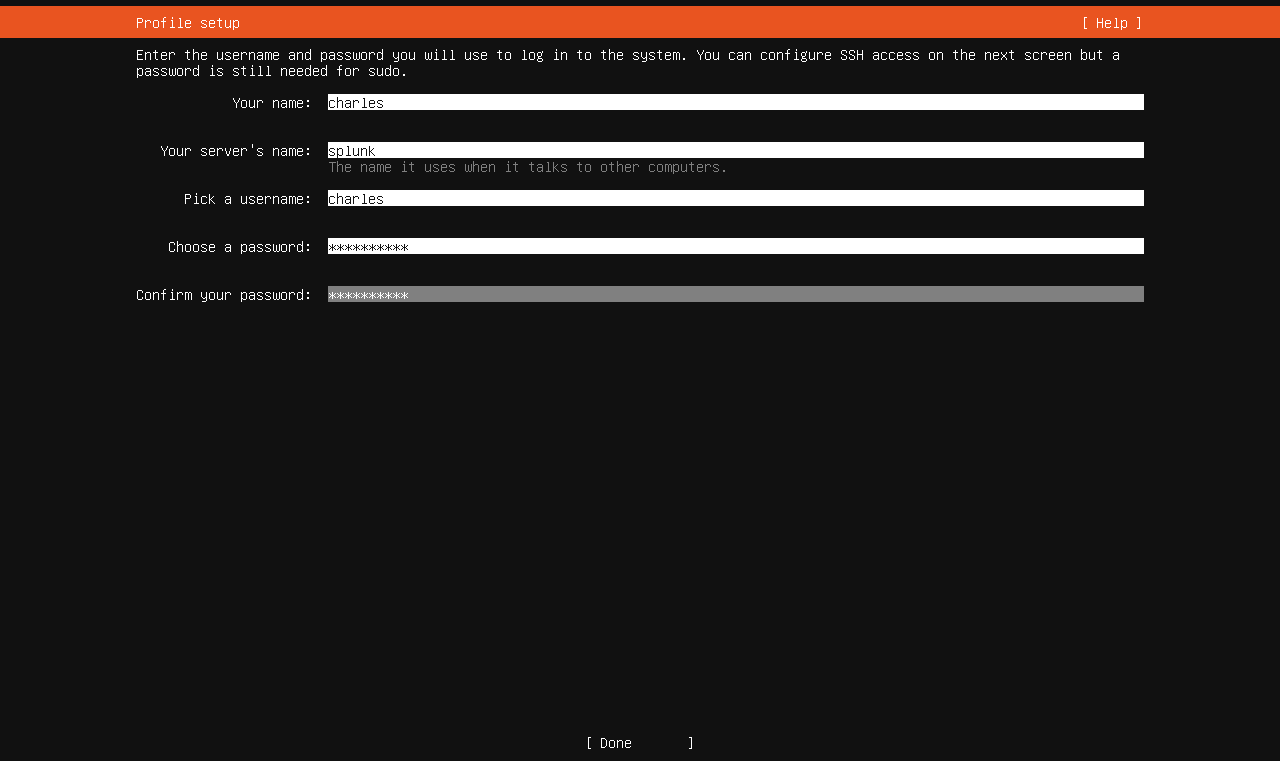
Create a Profile for the Splunk Server

<figure><img src="https://450836410-files.gitbook.io/~/files/v0/b/gitbook-x-prod.appspot.com/o/spaces%2Fgns9cN7UvH1POIBCfrRn%2Fuploads%2F9w8yCILmlNQb1v4NSfYE%2Fimage.png?alt=media&#x26;token=8459fb5a-0736-4577-a0bd-6aaa599832cc" alt=""><figcaption></figcaption></figure>

I opted to install OpenSSH on the server.&#x20;

{% embed url="<https://ubuntu.com/server/docs/service-openssh>" %}

<figure><img src="https://450836410-files.gitbook.io/~/files/v0/b/gitbook-x-prod.appspot.com/o/spaces%2Fgns9cN7UvH1POIBCfrRn%2Fuploads%2FkIt62QZqdBKsIZNKFuNQ%2Fimage.png?alt=media&#x26;token=582ee83c-01cc-4504-9ad4-946ec1ef6207" alt=""><figcaption></figcaption></figure>

After the VM has completed the installation and reboot process, you should be greeted with the sign-in screen.

There are two options for the Splunk server:

* Accessing the AnalsytVM using SSH
* Installing the Ubuntu Desktop GUI on the server

This lab will use option 2 and I will be installing the GUI.&#x20;

To install the GUI, follow the steps below:

Install tasksel

```
sudo apt install tasksel
```

Install the Ubuntu desktop GUI

```
sudo tasksel install ubuntu-desktop
```

Reboot the VM

```
reboot
```

<figure><img src="https://450836410-files.gitbook.io/~/files/v0/b/gitbook-x-prod.appspot.com/o/spaces%2Fgns9cN7UvH1POIBCfrRn%2Fuploads%2FVqRPJ7J6u97lUZs4vl1m%2Fimage.png?alt=media&#x26;token=463611b9-cce8-4cf9-95e9-e9c7d56e7fe7" alt=""><figcaption></figcaption></figure>

After rebooting the VM,  the GUI should be installed.&#x20;

<figure><img src="https://450836410-files.gitbook.io/~/files/v0/b/gitbook-x-prod.appspot.com/o/spaces%2Fgns9cN7UvH1POIBCfrRn%2Fuploads%2FkzmR0ATBYHrK2VhFqxQD%2Fimage.png?alt=media&#x26;token=01cb0285-4863-4f8b-87e1-9e2e905e444a" alt=""><figcaption></figcaption></figure>

Open up Firefox and navigate to Splunk

{% embed url="<https://www.splunk.com/en_us/download/splunk-enterprise.html>" %}

\*Note: if your machine does not have Firefox installed, you will need to install it.

```
sudo apt-get install firefox
```

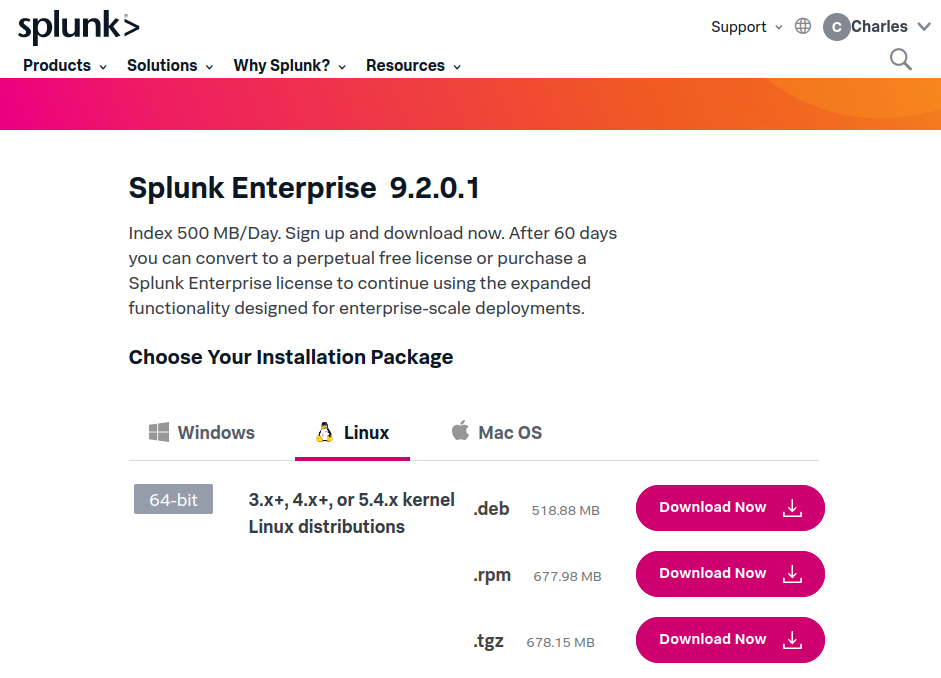
Be sure to download the Enterprise version and not the Cloud version of Splunk. Splunk Enterprise allows for a 60-day free trial.

Download the .tgz file

<figure><img src="https://450836410-files.gitbook.io/~/files/v0/b/gitbook-x-prod.appspot.com/o/spaces%2Fgns9cN7UvH1POIBCfrRn%2Fuploads%2FFIupnSldEQoNleKWVOu4%2Fimage.png?alt=media&#x26;token=507f2cc2-972f-41cf-8bb3-5195b62414f0" alt=""><figcaption></figcaption></figure>

After the download is complete, navigate to the Downloads folder and unzip the file.

```
tar -xvzf splunk
```

<figure><img src="https://450836410-files.gitbook.io/~/files/v0/b/gitbook-x-prod.appspot.com/o/spaces%2Fgns9cN7UvH1POIBCfrRn%2Fuploads%2FPnbFZY0qYcYmFKocPlR3%2Fimage.png?alt=media&#x26;token=225d97d0-93ed-4eca-a6f1-11f2a936ce79" alt=""><figcaption></figcaption></figure>

Navigate to the splunk folder and run `./splunk start` to start the instance.

<figure><img src="https://450836410-files.gitbook.io/~/files/v0/b/gitbook-x-prod.appspot.com/o/spaces%2Fgns9cN7UvH1POIBCfrRn%2Fuploads%2FztTdNYo2nImPy0zZ9np4%2Fimage.png?alt=media&#x26;token=6a4849bd-72f3-4de4-9b6b-5561f8d71382" alt=""><figcaption></figcaption></figure>

Enter a username and password of your choice.

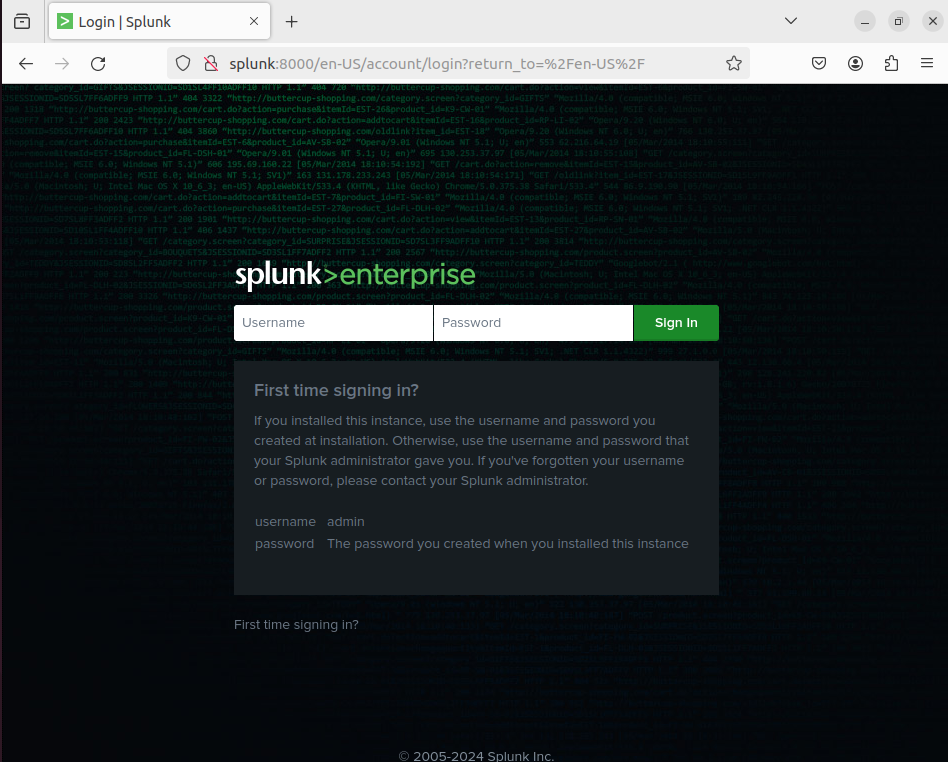
Navigate to the Splunk web interface: <http://splunk:8000>

<figure><img src="https://450836410-files.gitbook.io/~/files/v0/b/gitbook-x-prod.appspot.com/o/spaces%2Fgns9cN7UvH1POIBCfrRn%2Fuploads%2FLtkMWe9Eg3sdUfKQtdQr%2Fimage.png?alt=media&#x26;token=d6c6affe-6f09-4705-b280-9d4d4f5b4812" alt=""><figcaption></figcaption></figure>

Login with the credentials that were just created in the previous step.

<figure><img src="https://450836410-files.gitbook.io/~/files/v0/b/gitbook-x-prod.appspot.com/o/spaces%2Fgns9cN7UvH1POIBCfrRn%2Fuploads%2FX6mFwFA6Ennm82SwEQkl%2Fimage.png?alt=media&#x26;token=14368fe7-144e-4de6-a3c9-fc653ebe1972" alt=""><figcaption></figcaption></figure>

<figure><img src="https://450836410-files.gitbook.io/~/files/v0/b/gitbook-x-prod.appspot.com/o/spaces%2Fgns9cN7UvH1POIBCfrRn%2Fuploads%2FdskQ8INQaK8n8aj7bvg2%2Fimage.png?alt=media&#x26;token=e94282dc-5f28-4108-92b7-42be631be1e5" alt=""><figcaption></figcaption></figure>

#### Ingesting logs into Splunk

In this section, logs will be sent to Splunk from the domain controller. A Splunk universal forwarder will be installed on the domain controller and an be used to forward logs to the Splunk instance.

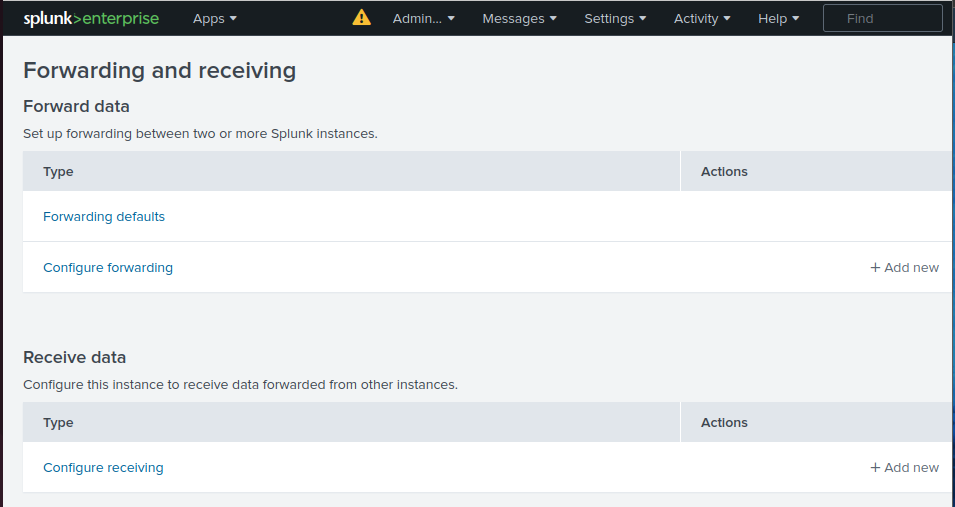
From Splunk home screen, navigate to Settings > Forwarding and receiving&#x20;

<figure><img src="https://450836410-files.gitbook.io/~/files/v0/b/gitbook-x-prod.appspot.com/o/spaces%2Fgns9cN7UvH1POIBCfrRn%2Fuploads%2FhvnG5pwJjbdOckkQyzwv%2Fimage.png?alt=media&#x26;token=00e36e70-adf0-40f0-9989-d032c50f0ad3" alt=""><figcaption></figcaption></figure>

Select Configure receiving under Recieve Data.

<figure><img src="https://450836410-files.gitbook.io/~/files/v0/b/gitbook-x-prod.appspot.com/o/spaces%2Fgns9cN7UvH1POIBCfrRn%2Fuploads%2Fi6XEEMad4TdIpwFGk7RF%2Fimage.png?alt=media&#x26;token=9b869f56-f6c8-4b50-9978-1ad65bf4ff52" alt=""><figcaption></figcaption></figure>

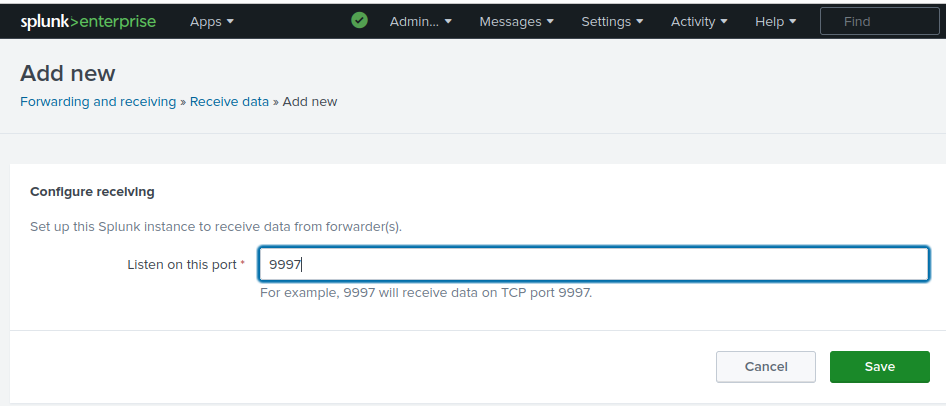
Enter port 9997 and click save.&#x20;

This will allow inbound connections from the Universal forwarder on port 9997.

<figure><img src="https://450836410-files.gitbook.io/~/files/v0/b/gitbook-x-prod.appspot.com/o/spaces%2Fgns9cN7UvH1POIBCfrRn%2Fuploads%2Fm28rFLoyaSPRaKaBm2yo%2Fimage.png?alt=media&#x26;token=cf5cf1ae-3b8d-44f5-a7a7-8c6f92818fa6" alt=""><figcaption></figcaption></figure>

<figure><img src="https://450836410-files.gitbook.io/~/files/v0/b/gitbook-x-prod.appspot.com/o/spaces%2Fgns9cN7UvH1POIBCfrRn%2Fuploads%2Fn7DcEH5FWgVi2YmpknUB%2Fimage.png?alt=media&#x26;token=2b3b472f-8254-47aa-8c8e-45847ed196f6" alt=""><figcaption></figcaption></figure>

Next, navigate to Settings > Indexes

Indexes are repositories of raw event data where it is transformed into searchable events.

<figure><img src="https://450836410-files.gitbook.io/~/files/v0/b/gitbook-x-prod.appspot.com/o/spaces%2Fgns9cN7UvH1POIBCfrRn%2Fuploads%2FUkwfXZ3oKlE7lisRqLZe%2Fimage.png?alt=media&#x26;token=e508b57e-f08f-4d1e-9017-f76cea2b5e7f" alt=""><figcaption></figcaption></figure>

A new index will need to be created for the Windows events from the domain controller.

<figure><img src="https://450836410-files.gitbook.io/~/files/v0/b/gitbook-x-prod.appspot.com/o/spaces%2Fgns9cN7UvH1POIBCfrRn%2Fuploads%2FtzeF3ovYwVXX1Cdvosxx%2Fimage.png?alt=media&#x26;token=a4994ccb-652e-4dfd-8334-f9c1ec104936" alt=""><figcaption></figcaption></figure>

Navigate to the domain controller.

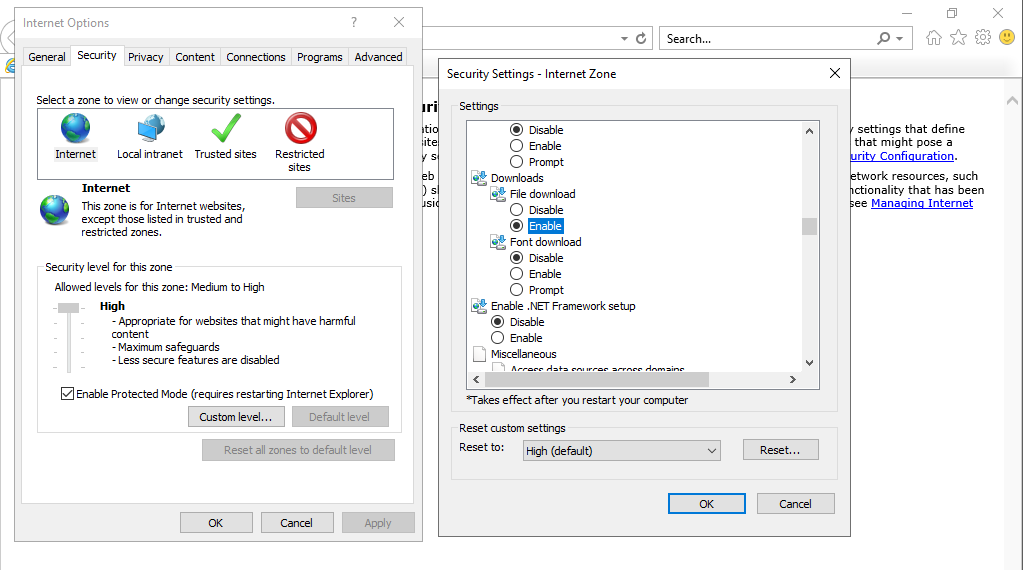
Internet Explorer may be locked down and downloads may be disabled. To enable downloads, go to Internet Options > Security Settings > scroll down to Downloads > Enable

<figure><img src="https://450836410-files.gitbook.io/~/files/v0/b/gitbook-x-prod.appspot.com/o/spaces%2Fgns9cN7UvH1POIBCfrRn%2Fuploads%2F7GtNSMCQAxcBusPA99eJ%2Fimage.png?alt=media&#x26;token=180604d2-e64a-4624-89f2-4df11dcb707f" alt=""><figcaption></figcaption></figure>

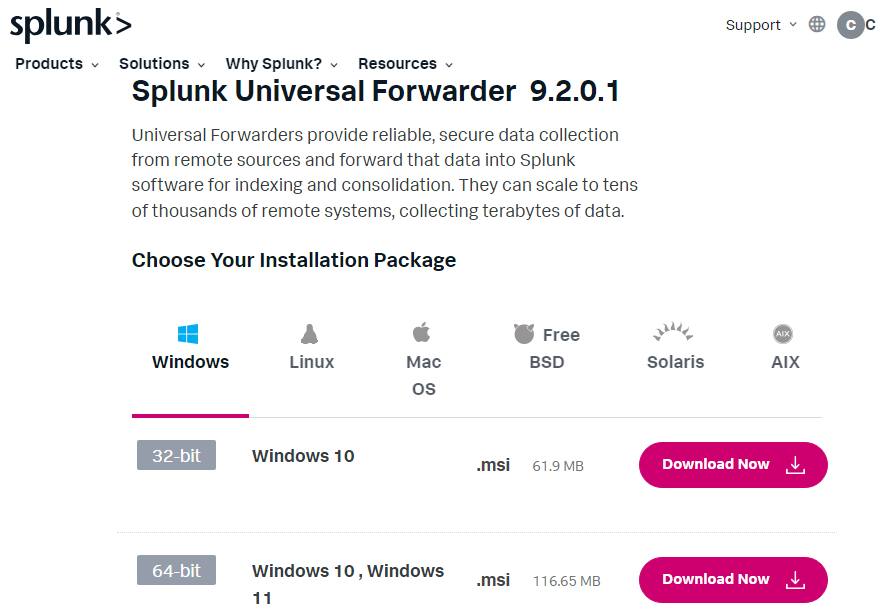
Download the Splunk Universal Forwarder for Windows below:

{% embed url="<https://www.splunk.com/en_us/download/universal-forwarder.html>" %}

<figure><img src="https://450836410-files.gitbook.io/~/files/v0/b/gitbook-x-prod.appspot.com/o/spaces%2Fgns9cN7UvH1POIBCfrRn%2Fuploads%2FmCB7OaPQJfAFfrB3iqnY%2Fimage.png?alt=media&#x26;token=f1e4f8ef-fdcc-44b9-ba41-181dc5baacdf" alt=""><figcaption></figcaption></figure>

Once the download is complete, run the install.

When prompted for the Hostname or IP, enter the Splunk server IP and the default ports (8089 & 9997).

<figure><img src="https://450836410-files.gitbook.io/~/files/v0/b/gitbook-x-prod.appspot.com/o/spaces%2Fgns9cN7UvH1POIBCfrRn%2Fuploads%2F9abJ1D4RxiXkfOfOGxMw%2Fimage.png?alt=media&#x26;token=e48303e7-7cef-4a76-bbce-166743da174a" alt=""><figcaption></figcaption></figure>

After the Universal Forwarder install is complete, navigate back to the Splunk instance.

Settings > Add Data > Forward

<figure><img src="https://450836410-files.gitbook.io/~/files/v0/b/gitbook-x-prod.appspot.com/o/spaces%2Fgns9cN7UvH1POIBCfrRn%2Fuploads%2FUj6jfBkIMIvWvfpttfX4%2Fimage.png?alt=media&#x26;token=790665f3-db69-4199-a756-cd2809ff6917" alt=""><figcaption></figcaption></figure>

Select the Windows Domain Controller

<figure><img src="https://450836410-files.gitbook.io/~/files/v0/b/gitbook-x-prod.appspot.com/o/spaces%2Fgns9cN7UvH1POIBCfrRn%2Fuploads%2FOvlqbx5u6shWRWOuNFR9%2Fimage.png?alt=media&#x26;token=b3dbd294-722b-4312-812e-f115207e2bfb" alt=""><figcaption></figcaption></figure>

Enter a New Server Class Name

<figure><img src="https://450836410-files.gitbook.io/~/files/v0/b/gitbook-x-prod.appspot.com/o/spaces%2Fgns9cN7UvH1POIBCfrRn%2Fuploads%2FBOlykIsleE75nhKLyrlQ%2Fimage.png?alt=media&#x26;token=65783ce6-71c9-40d2-b798-162b4a8d4a11" alt=""><figcaption></figcaption></figure>

Select windeventlog > Review > Submit

<figure><img src="https://450836410-files.gitbook.io/~/files/v0/b/gitbook-x-prod.appspot.com/o/spaces%2Fgns9cN7UvH1POIBCfrRn%2Fuploads%2FOlIDfnsxjnJUmfYqt3ck%2Fimage.png?alt=media&#x26;token=2147e4c6-cf5f-416a-9f6d-c08e72bba44f" alt=""><figcaption></figcaption></figure>

From here, we can see that the event logs are populating in Splunk.

<figure><img src="https://450836410-files.gitbook.io/~/files/v0/b/gitbook-x-prod.appspot.com/o/spaces%2Fgns9cN7UvH1POIBCfrRn%2Fuploads%2F3Lk1tDnFHGR90hIsdiUJ%2Fimage.png?alt=media&#x26;token=8ccb4a5f-ba57-4b81-a5c9-1863dcdb9009" alt=""><figcaption></figcaption></figure>

Sources for Splunk Search Processing Language (SPL)&#x20;

{% embed url="<https://docs.splunk.com/Documentation/SplunkCloud/latest/Search/Aboutthesearchlanguage>" %}

{% embed url="<https://www.splunk.com/en_us/blog/learn/splunk-cheat-sheet-query-spl-regex-commands.html>" %}

This concludes the setup of the Cyber Home lab. The lab can be used for working on detection, creating rules, SIEM practice, attack scenarios, AD practice, and much more!

### Lab Troubles

Following this lab step-by-step, I discovered there were IP issues with the machines. Some machines were on the same subnet as the WAN and not segmented properly. After some research online,  I discovered that others had the same issue. By following the steps provided by Jv Cybergaurd, I was able to address the networking issue. Jv Cybergaurd provides step-by-step instructions on troubleshooting and fixing the issue here:&#x20;

{% embed url="<https://www.thesocspot.com/post/cybersecurity-monitoring-and-detection-lab-pt6-b>" %}